

Here is a question worth asking yourself honestly: How many unread emails are in your inbox right now? If the answer is ‘more than I want to think about,’ you’re not alone. Many people are now turning to AI to organize digital life for seniors because they’ve accumulated decades of digital clutter—one email, one photo, and one saved document at a time—with no real system and never quite enough time to deal with it.
Patricia is 67. Following a retirement from hospital administration three years ago , this organized professional spent her career running departments and managing complex budgets. Her experience involved keeping intricate systems running on time by every professional measure.
Her personal digital life was a different story.
“I had 14,847 unread emails,” she says, without flinching. “Photos from 2009 I’d never sorted. Documents saved in folders named ‘stuff’ and ‘new folder 2’ and ‘important maybe.’ Passwords in a notebook that was three years out of date.”
Over four months in early 2025, Patricia used a small set of AI tools to systematically organize everything. Not perfectly — she’s careful to say that. But functionally. Usably. She can find things now. She doesn’t feel a low-grade anxiety every time she opens her laptop.
“The technology wasn’t complicated,” she says. “What was complicated was knowing where to start. Once I had a plan, it was just work.”
This guide is that plan — laid out step by step, explained completely, for seniors who are ready to get their digital life under control once and for all.
Why Digital Disorganization Hits Seniors Harder — And Why It’s Not Your Fault
Before anything else, let’s acknowledge something that most technology guides skip: seniors face a specific, structural disadvantage in digital organization that has nothing to do with intelligence or capability.
The digital world accumulated around you gradually. It often started with one email account before another was added. Once you got a smartphone in your 50s, photos began accumulating rapidly. Switching computers over the years meant files were often copied across imperfectly. Along the way, you likely joined various social media platforms—some still in use and others long abandoned—while creating dozens of accounts you’ve since forgotten.
Younger people face these same problems — but they grew up building systems as the technology emerged. Seniors inherited the clutter of 20 to 30 years of digital accumulation, often without the systems that should have accompanied it.
The result is a digital life that feels overwhelming not because you’re incapable of managing it, but because nobody ever helped you design a system for it.
AI changes that. Not by doing everything for you — but by providing a practical way to use ai to organize digital life for seniors, dramatically reducing the effort required to build and maintain functional digital organization.
The Four Areas of Digital Life That Seniors Most Need to Organize
Digital organization is not one problem. It’s four separate problems that benefit from different approaches. Understanding which is causing you the most friction helps you prioritize where to start.
📧 Area 1: Email
Thousands of unread messages. Newsletters you never read. Receipts mixed with important correspondence. No folder system. Constant low-grade anxiety.
📸 Area 2: Photos
Thousands of photos across your phone, old computers, flash drives, and cloud services. Duplicates. Unnamed files. No way to find specific memories quickly.
📄 Area 3: Documents and Files
Important documents scattered across desktops, downloads folders, and misnamed directories. Tax records mixed with recipe saves mixed with work files.
🔐 Area 4: Passwords and Accounts
Passwords written in notebooks, saved inconsistently in browsers, or simply forgotten. Accounts you’ve lost access to. Security risks from reused or weak passwords.
Patricia’s project took four months because she tackled all four systematically. If you’re starting today, choose the one causing you the most daily friction — for most seniors, that’s email — and start there. Add the others as you build momentum.
📧 Area 1: Using AI to Finally Conquer Your Email
Email is where most seniors’ digital disorganization lives — and where AI provides the most immediate, dramatic relief.
The Tool: Gmail with Google’s AI Features (or Outlook Copilot)
If you use Gmail, Google has built significant AI functionality directly into the email interface — available at no extra cost. If you use Outlook (Microsoft’s email), Microsoft Copilot provides similar AI-powered organization features.
Here’s what these AI tools can do for your inbox:
🤖 AI Email Summary
Gmail’s AI can read a long email thread — the kind where 15 people have replied back and forth — and summarize it in three sentences. Instead of reading through 45 emails to understand what was decided, you read a summary. For seniors managing family communication, medical correspondence, or professional threads, this alone saves hours per week.
🏷️ Smart Labels and Filters
Gmail’s AI categorizes your incoming email automatically into tabs: Primary (important personal email), Promotions (newsletters and marketing), Social (social media notifications), and Updates (receipts and notifications). This happens automatically once you enable it — no setup required beyond turning the feature on in Gmail’s settings under “Configure Inbox.”
✍️ AI-Drafted Replies
When you click reply to an email, Gmail now shows suggested reply options. For simple responses — confirming an appointment, acknowledging receipt of something, saying yes or no to a simple request — one click generates a complete, professional reply you can send or edit. This dramatically reduces the friction of clearing a backlog of emails that need responses.
The Inbox Zero Strategy for Seniors With 10,000+ Unread Emails
If your inbox has thousands of unread emails, the thought of going through them individually is paralyzing. Don’t. Here’s the approach that actually works:
- Select all emails older than six months and archive them. In Gmail, search “before:2025/10/01” (adjusting the date to six months ago), select all results, and click Archive. These emails are not deleted — they’re moved out of your inbox and are still searchable if you need them. But you’re no longer looking at them daily.
- Unsubscribe from everything you don’t actively read. Use Unroll.me — a free service that scans your inbox for newsletters and subscriptions and lets you unsubscribe from all of them in one session. Patricia unsubscribed from 94 lists in a single afternoon.
- Create three folders only: “Action Required,” “Waiting For Reply,” and “Reference.” Everything that comes in either needs action (move it to the first folder), is something you’re waiting for a response on (second folder), or is reference information you might need later (third folder). Everything else gets archived immediately after reading.
- Use Claude or ChatGPT to help you write the emails you’ve been avoiding. Paste the email you need to respond to into Claude and say “help me write a professional response that [explains your situation].” This removes the friction that causes emails to sit unanswered for weeks.
📸 Area 2: Using AI to Organize Years of Digital Photos
This is the area that produces the strongest emotional reaction from seniors — both because the photos matter deeply and because the disorganization is often most severe.
The Scale of the Problem
The average smartphone takes 10 to 20 photos for every one that used to be taken with a film camera — because digital photos are free and editing is instant. A senior who has had a smartphone for eight years may have accumulated 15,000 to 30,000 photos, most of which have never been organized.
The Tool: Google Photos
Google Photos is a free service (with some storage limitations) that uses AI to organize your photos automatically. Here’s what it does without any effort on your part:
- Recognizes people’s faces and groups photos by person — tap on a face in one photo to see all photos of that person across your entire library
- Recognizes locations — searches like “beach trip” or “mountains” or a specific city name will surface relevant photos even if you never tagged or labeled them
- Recognizes objects and scenes — search “birthday cake” or “sunset” or “dog” and Google Photos finds every matching image in your library
- Automatically creates albums around trips, events, and time periods
- Backs up everything to the cloud so photos can’t be lost if your phone breaks
Setting Up Google Photos for the First Time
- Download the free Google Photos app on your phone
- Sign in with your Google (Gmail) account
- Allow it to access your camera roll and turn on backup
- Wait — the first backup can take hours or days depending on how many photos you have. Leave it running overnight connected to Wi-Fi
- Once backup is complete, open Google Photos and tap the search bar. Type anything — a person’s name, a place, an event — and watch the AI find relevant photos instantly
What About Photos on Old Computers and Flash Drives?
For photos scattered across old devices, Google Photos desktop uploader lets you upload photos from your computer to the same library. Insert old flash drives and upload those too. Over a few weeks, you can consolidate photos from every device you’ve ever owned into one searchable, AI-organized library.
💡 The moment that changes everything: Once your photos are in Google Photos, try searching for a specific memory. You can start by typing a family member’s name or searching for a city you visited 10 years ago. Try entering terms like ‘Christmas’ or ‘graduation’ to see the results. The AI surfaces photos you forgot you had, making it incredibly easy to relive those moments.The AI surfaces photos you forgot you had. Most seniors describe this as genuinely emotional — finding memories they thought were lost in the digital chaos.
📄 Area 3: Using AI to Organize Your Documents and Files
Documents are different from photos — they need to be findable quickly, often under time pressure (looking for an insurance document, finding a tax return, locating a medical record). Disorganized documents aren’t just annoying; they can cause real problems.
The AI Tool: Notion AI for Personal Document Management
Notion is a free organizational tool with built-in AI. For seniors managing important documents, it provides a home base where you can store, organize, and search everything that matters. See our complete Notion AI for Seniors guide for the full setup walkthrough.
The Simple Folder System That Actually Works
Most document organization systems fail because they’re too complex. Patricia uses a seven-folder system that covers everything:
- Health — medical records, insurance cards, Medicare documents, prescriptions, test results
- Finance — bank statements, tax returns, investment documents, Social Security correspondence
- Legal — will, power of attorney, property documents, contracts
- Home — insurance, maintenance records, appliance warranties, utility contacts
- Family — important documents for family members you’re responsible for
- Active Projects — anything you’re currently working on that doesn’t fit elsewhere
- Archive — everything else, searchable but out of the way
Seven folders. Everything fits. Nothing is named “stuff” or “new folder 2.”
How AI Helps With Documents
Claude or ChatGPT can help you with the document tasks that are most time-consuming, showing how easy it is to use ai to organize digital life for seniors:
- Understanding confusing documents: Paste a confusing insurance letter, Medicare explanation, or legal document into Claude and ask “explain this in plain English.” This is one of the most practically valuable uses of AI for seniors.
- Summarizing long documents: Upload a PDF to Claude and ask for a one-page summary of the key points.
- Creating important documents: Ask Claude to help you draft a medical power of attorney instruction, a letter to an insurance company, or a summary of your wishes for family members.
- Deciding what to keep: Describe a document type to Claude and ask “do I need to keep this and for how long?” The IRS recommends specific retention periods for tax documents; Claude can explain the general guidelines.
🔐 Area 4: Using AI-Assisted Tools to Fix Your Password Problem
This is the area most seniors want to skip — and the one with the most serious consequences if ignored.
Weak or reused passwords are how most seniors’ accounts get hacked. The solution is not to create more complex passwords that you’ll inevitably forget — it’s to use a password manager that remembers everything securely and generates strong passwords automatically.
What Is a Password Manager? (Explained Completely)
A password manager is a secure digital vault that stores all your passwords in one encrypted place. You remember one master password to open the vault — the password manager remembers everything else. When you visit a website, it automatically fills in your username and password. You never type a password manually again.
The Best Password Manager for Seniors: 1Password or Bitwarden
1Password ($3/month) is the most user-friendly option for seniors. Its interface is clean and simple, it works on all devices, and its customer support is excellent. For seniors who find technology intimidating, 1Password’s design philosophy prioritizes clarity over features.
Bitwarden is free and open-source — technically as secure as any paid option. Slightly less polished interface but completely functional. A good choice for seniors comfortable with basic technology who prefer not to pay a monthly fee.
Setting Up Your Password Manager: What the First Week Looks Like
The hardest part of starting a password manager is not learning to use it — it’s the transition period where you gradually move all your existing passwords into it. Here’s how to make that process manageable:
- Day 1: Install the password manager and browser extension. Create your master password — make it a memorable phrase of four or five words, not a random string of characters. Write this master password on paper and store it somewhere secure. This is the one password you cannot lose.
- Week 1: Every time you log into a website this week, let the password manager save that password. Don’t try to import everything at once — let normal usage gradually fill the vault.
- Month 1: After a month, go through your saved notebook of passwords and manually add any accounts you haven’t logged into recently — banking, insurance, government portals, medical patient portals.
- Ongoing: When the password manager warns you that a password is weak or reused, let it generate a new strong password and update it. Over time, all your weak passwords get replaced without a single afternoon of stressful password changing.
⚠️ A note about cybersecurity: Organizing your digital life also means protecting it. For a complete guide to staying safe online as a senior — including how to recognize scams, protect your accounts, and avoid the frauds specifically targeting older adults — see our Cyber Safety for Seniors guide.
The AI Tools That Make Digital Organization Genuinely Easier for Seniors
Here’s a summary of the specific tools mentioned in this guide, with honest assessments of what each requires from you:
| Tool | What It Does | Cost | Difficulty for Seniors |
|---|---|---|---|
| Gmail AI features | Email summaries, smart categorization, draft replies | Free | ⭐ Easy — built into Gmail |
| Unroll.me | Mass unsubscribe from email lists | Free | ⭐ Easy — one afternoon |
| Google Photos | AI photo organization, face/object recognition | Free (15GB) | ⭐⭐ Easy — setup takes an hour |
| Notion AI | Document organization, note-taking, AI search | Free/$10 mo | ⭐⭐⭐ Moderate — two-week learning curve |
| Claude or ChatGPT | Explain documents, draft emails, answer questions | Free/$20 mo | ⭐ Easy — just type and ask |
| 1Password | Password management, secure account storage | $3/month | ⭐⭐ Easy — one-week transition |
For a broader overview of AI tools that can simplify daily life for seniors, see our guide on Best AI Tools for Seniors.
Patricia’s Four-Month Project: A Realistic Timeline
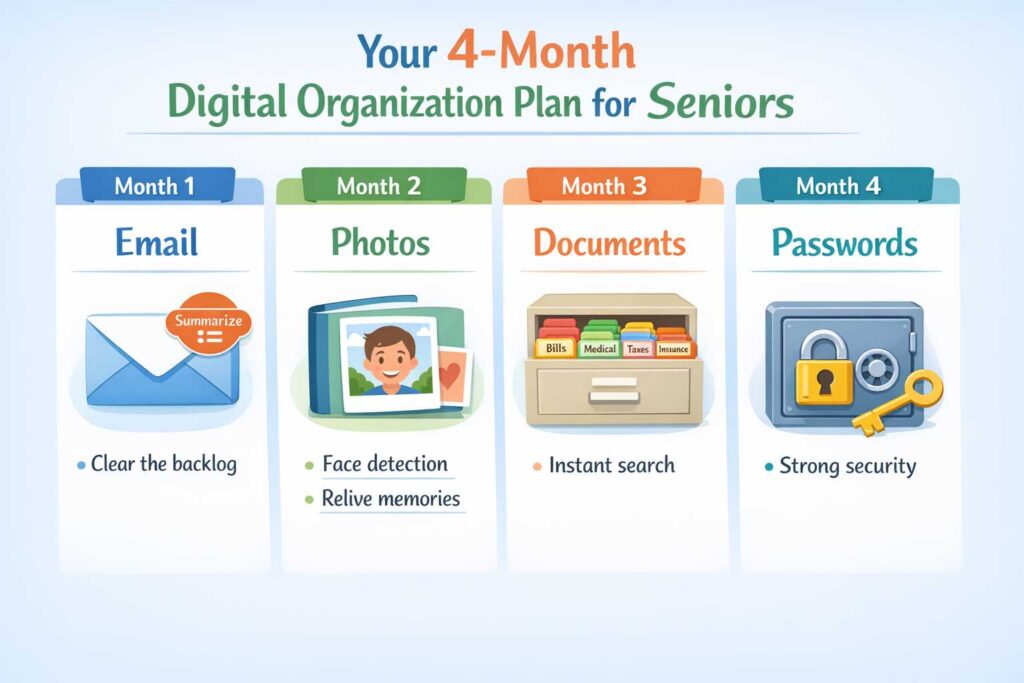
Here’s roughly how Patricia approached her digital organization project — useful as a reference for pacing your own:
Month 1 — Email: Archived everything older than six months. Used Unroll.me to unsubscribe from 94 newsletters. Created three folders. Got her inbox below 50 emails for the first time in years.
Month 2 — Photos: Installed Google Photos and ran the initial backup (took three days on her connection). Spent several evenings going through the automatically created albums, tagging faces, and creating manual albums for her most important family events.
Month 3 — Documents: Created her seven-folder system. Spent one weekend scanning physical documents that existed only on paper using her phone’s built-in document scanner (both iPhone and Android cameras have this — search “scan document” in your camera app). Filed everything digital into the appropriate folder.
Month 4 — Passwords: Installed 1Password. Let it capture passwords through normal usage for three weeks. Spent one afternoon going through her paper notebook and adding accounts she hadn’t visited recently.
“Four months sounds like a long time,” Patricia says. “But I wasn’t working on it every day. Most weeks it was an hour or two. The hardest part was starting. Once I started, each small win made the next one easier.”
Next Steps: A Calmer Digital Life Starts This Week
You don’t have to do all of this at once. Pick one area and start there:
- If email anxiety is your biggest problem — spend one hour this weekend archiving everything older than six months and visiting Unroll.me.
- If you can’t find your photos — download Google Photos on your phone this evening and start the backup.
- If you’re worried about your passwords — visit 1password.com and start a free trial this week.
- If confusing documents are your main frustration — open Claude at claude.ai and paste the next confusing letter you receive. Ask it to explain.
For more on using AI tools in your daily and professional life, see our guides on Notion AI for Seniors, ChatGPT vs Claude for Seniors, and our complete Best AI Tools for Seniors guide.
If you’re working from home and want to apply these organizational principles to your professional digital life as well, our guide on Work From Home Daily Schedule for Seniors covers how to structure your day around a functional digital environment.
Patricia opened her laptop this morning and found exactly what she was looking for in under 30 seconds. Two years ago, that would have taken 20 minutes and ended with mild frustration. She doesn’t think about her digital life much anymore.
“That’s what I wanted,” she says. “Not a perfect system. Just one that gets out of my way.”
Your digital life doesn’t have to be a source of low-grade anxiety. One afternoon, one tool, one area at a time — it can become something that works for you instead of against you. Start today.
❓ Frequently Asked Questions: AI to Organize Digital Life for Seniors
Google Photos is the most impactful starting point because its AI works automatically. If email is your main stress, using ai to organize digital life for seniors through Gmail’s built-in features is a free and easy alternative.
Yes, using reputable tools like 1Password or Bitwarden is secure. When utilizing ai to organize digital life for seniors, your primary safety task is keeping your master password in a secure, physical location.
Organizing everything typically takes two to four months with just one or two hours of effort per week. Starting with ai to organize digital life for seniors for photos and emails gives you the quickest wins to stay motivated.
Use a USB card reader for old digital cameras or your smartphone’s “scan” feature to digitize printed albums. For massive collections, professional services like Legacybox are recommended.
Yes, pasting confusing documents into Claude or ChatGPT for a “plain-English” summary is a valuable way to understand what is required of you.
Use “legacy contact” features on Google or Apple and keep a simple list of your accounts for your family. This ensures your loved ones can access your digital memories later