
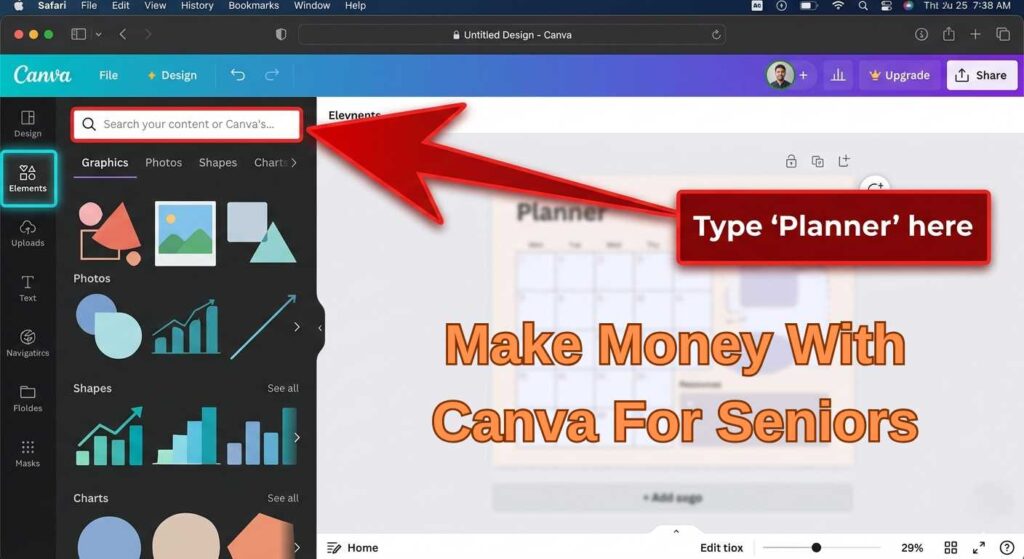
What this guide covers: How to open Canva, what to design first, which products actually sell in 2026, where to list them, and what a realistic first 90 days looks like — written specifically for Americans over 55 who have never designed anything online before. No graphic design background required.
Imagine sitting at your kitchen table with a cup of coffee, realizing that making money with Canva is a realistic goal for your retirement. This free online design tool is used by over 220 million people worldwide because its philosophy is built around simplicity. You do not need Photoshop experience to succeed here. Instead of worrying about complex file formats or color theory, you simply point, click, drag, and type. As long as you can write an email and browse the internet, you possess every technical skill required to start.
That is what making money with Canva as a senior actually looks like at its best. Not a get-rich scheme. Not a second career requiring forty hours a week. A genuinely accessible creative side income that fits around real retirement life.
Canva is a free online design tool used by more than 220 million people worldwide, and its entire philosophy is built around simplicity. You do not need Photoshop experience to succeed here. Instead of worrying about complex file formats or color theory, you simply point, click, drag, and type. As long as you can write an email and browse the internet, you already possess every technical skill required to start.
This guide walks you through the whole thing — from creating your account to making your first sale — in plain, step-by-step language. Think of it as having someone sit beside you at the computer and walk you through it together.
Why Canva Is Genuinely Different From Other Design Software
Most design software — Adobe Photoshop, Illustrator, InDesign — was built for professional graphic designers who trained for years. The menus are deep, the learning curve is steep, and a single mistake can send you searching through help forums for an hour. Canva was built for everyone else.
The key difference is templates. Instead of starting with a blank white screen and building everything from scratch, Canva gives you thousands of professionally designed starting points. Want to make a birthday card? Search “birthday card” and Canva shows you hundreds of beautiful layouts. Click one. Change the name. Change the colors if you want. Download. Done. That process takes about eight minutes for a first-timer.
In 2026, Canva also includes AI-powered features — called Magic Studio — that can generate design variations, resize your work for different platforms instantly, and even suggest layouts based on your content. These tools are built directly into the same screen you are already using. You do not need to learn a separate AI tool; it is just there when you want it.
Cost: zero to start. The free version of Canva includes over a million graphic elements, thousands of templates, and every basic tool you need to build a profitable product line. The paid version, Canva Pro, costs about $15 per month and adds professional fonts, a background removal tool, and more storage — but you do not need it until you are ready to reinvest some of your earnings.
Setting Up Your Canva Account: The First 10 Minutes

- Go to canva.com and click “Sign up for free”
- Open your browser (Chrome, Safari, Edge — whichever you normally use) and type canva.com in the address bar at the top. You will see a big, clean homepage. Look for the purple button that says “Sign up for free.” Click it.
- Choose how to sign in
- Canva gives you three options: sign up with Google, sign up with Facebook, or sign up with your email address. The simplest option is Google — if you have a Gmail account, just click “Continue with Google” and it connects automatically. If you do not have Gmail, click “Continue with email,” type in your email address, create a password you can remember, and Canva sends you a quick verification message.
- Skip the “What will you use Canva for?” screen
- Canva asks about your purpose. Select “Personal” or “Small Business” — either one is fine. This just adjusts which templates it highlights first. It does not lock you into anything. Click Continue.
- You are in. Take a look around before doing anything
- The homepage shows a search bar at the top, a row of suggested template types (Instagram Post, Presentation, Flyer, etc.), and your blank workspace below. Do not feel pressured to start creating yet. Spend five minutes just clicking on different template categories to see what is possible. This exploration time is never wasted.
- Try your first template — just to get the feel of it
- In the search bar, type “weekly planner.” Click any design that appeals to you. The design opens in the editor. Click on any text you see — a blue box appears around it — and start typing over it. Click somewhere else and the edit saves. That is the entire core mechanic. Everything else is just variations of that same click-and-edit process.
Watch and Learn: Video Tutorial for Beginners
If you prefer to see someone else do it first, this video is an excellent starting point for learning the Canva basics:
One Important Rule Before You Start Selling
Canva’s licensing rule — read this once and remember it
You cannot take one of Canva’s ready-made templates and sell it as-is. What you can do is use Canva’s free elements, fonts, and layouts to build something original — combining pieces in your own arrangement — and sell that finished product. In practice, this means: start from a template, customize it significantly (change the layout, colors, fonts, and content), and what you sell is your own creative version, not Canva’s original. When in doubt, the Canva Content License Agreement is readable and clear. You do not need a lawyer to understand it.
What to Actually Make: 6 Products That Sell Well in 2026
The biggest mistake new Canva sellers make is trying to design everything. They make greeting cards, then planners, then social media templates, then invitations — and none of it gains traction because no Etsy shop can rank well for six different things at once. The sellers consistently earning real money in 2026 have picked one niche and gone deep. If you are serious about making money with Canva, focusing on a specific solution for a specific group of people is the fastest way to see results.
Below are six product categories that are selling well right now, with honest income ranges and a note on which types of sellers they suit best.
Printable Planners
$200–$800/month
Weekly schedules, meal planners, budget trackers, garden logs, medication trackers. Functional, evergreen demand. One well-designed planner can sell for years. Best for: organized personalities who like structure.
Social Media Templates for Small Businesses
$300–$1,200/month
Packs of 10–30 matching Instagram or Facebook post templates for a specific type of business: bakeries, real estate agents, churches, pet shops. Buyers are non-designers who need to post consistently. Best for: people with a former business or marketing background.
Greeting Cards and Invitation Templates
$100–$500/month
Printable birthday cards, anniversary cards, retirement party invitations. Seasonal spikes around holidays. Low competition in milestone niches (70th birthday, 50th anniversary, retirement). Best for: creative, detail-oriented designers.
Educational Worksheets
$150–$700/month
Activity sheets, handwriting practice pages, homeschool resources, language learning worksheets. Teachers Pay Teachers is a dedicated marketplace for these. Best for: former teachers, tutors, or anyone with subject expertise.
Resume and LinkedIn Templates
$200–$600/month
Clean, modern resume layouts and LinkedIn banner templates. Job seekers buy these constantly. Simple to design, minimal visual complexity. Best for: anyone with an HR, recruiting, or career coaching background.
Freelance Design Services (Active Income)
$500–$2,000/month
Designing custom social media graphics, business cards, or presentation decks for individual clients on Fiverr or Upwork. Higher income, not passive — but fastest path to your first dollar. Best for: people who enjoy working with clients.
“In 2026, success isn’t about selling general templates — it’s about selling solutions to specific problems for specific people.” — Growing Your Craft, Etsy seller resource
Where to Sell: Etsy vs. Fiverr vs. Selling Direct
Once you have created something worth selling, you need somewhere to list it. Here is how the main options compare for seniors just starting out.
| Platform | Best For | Fee Structure | How Long to First Sale | Passive or Active? |
|---|---|---|---|---|
| Etsy | Digital downloads: planners, cards, templates | $0.20 per listing + 6.5% per sale | 2–8 weeks (builds with reviews) | Passive — auto-delivery |
| Fiverr | Custom design services for individual clients | 20% commission per order | 1–3 weeks | Active — you do the work |
| Teachers Pay Teachers | Educational worksheets and classroom resources | Free account: 20% fee. Paid account: 15% | 2–6 weeks | Passive — auto-delivery |
| Gumroad | Templates and digital guides with no setup fees | 10% per sale (free plan) | Depends on your own traffic | Passive — but needs marketing |
| Upwork | Ongoing design work for small businesses | 20% until you earn $500 with a client, then 10% | 1–4 weeks | Active — ongoing work |
For most seniors just starting out, Etsy combined with one Fiverr listing is the recommended approach. Etsy builds passive income over time. Fiverr puts money in your account faster while Etsy is gaining momentum. Within 60 to 90 days, many new sellers find one channel pulling ahead — and they focus there. For a broader view of selling digital products, see our full digital products guide for retirees.
Opening Your Etsy Shop: Exactly What to Do
Etsy is where most people begin their journey of making money with Canva because the buyer traffic is already there. Since over 96 million active buyers browse Etsy regularly, you are listing your designs in a marketplace that is already searching for what you make.
- Go to etsy.com and click “Sell on Etsy”
The sign-up process takes about 15 minutes. You will choose a shop name, your country, and your currency. Pick a shop name that describes your niche clearly — “MilliePlannerShop” or “BlueSkyPrintables” — something simple that tells buyers what they are getting.
- Create your first listing as a digital download
Click “Add a listing.” Upload a clear image of your design — this is your product photo. Write a title that includes words people actually search for: “Printable Weekly Meal Planner for Seniors — PDF Download.” In the delivery section, select “Digital item” and upload your PDF or PNG file. Etsy handles the automatic delivery to the buyer; you never have to email anyone anything.
- Price it honestly
New sellers consistently underprice their work out of self-doubt. A well-made 4-page weekly planner is worth $5 to $12. A bundle of 20 social media templates is worth $15 to $35. A premium branding kit with multiple files is worth $25 to $60. Check what similar products sell for on Etsy before setting your price — and aim for the middle of the range, not the bottom.
- Write your listing description for both buyers and Google
Your description should answer two questions: what is this product, and why does the buyer need it? Include the search terms people would use naturally: “printable weekly planner,” “meal planning PDF,” “instant download planner for seniors.” Etsy’s search engine rewards listings that use the right words. Keep it clear, honest, and specific about what the buyer receives.
- Fill in your tags (all 13 of them)
Etsy gives you 13 tag slots. Use all of them. Think like a buyer: what would they type if they were searching for this? “Printable planner,” “meal plan PDF,” “weekly schedule printable,” “senior planner,” “instant download,” “weekly meal tracker,” “digital planner.” Each tag is a potential search match. Unused tags are missed opportunities.
What Works and What Wastes Your Time: The Honest List
Do these things
- Pick one niche and create at least 10 listings in it before expanding
- Use all 13 Etsy tags on every listing
- Create product mockups — images showing your design in context (a desk, a clipboard, a phone screen)
- Read your listing twice for typos before publishing
- Respond to any customer questions within 24 hours
- Start with a free Canva account and reinvest your first $50 in Canva Pro
- Price in the middle of the market range, not at the bottom
Avoid these mistakes
- Selling Canva’s default templates without significant customization
- Creating products in five different niches at once
- Expecting sales in week one — it takes time to build reviews
- Using Canva Pro elements in a template you sell to free Canva users
- Copying a best-seller’s design exactly — your own style is what builds loyalty
- Ignoring your shop’s About section — buyers want to know who they are buying from
- Giving up after 30 days without a sale — 60 to 90 days is a more honest timeline
A Realistic 90-Day Income Timeline
What to expect month by month
Week 1–2 Account setup, first 3–5 designs created, first Etsy listings live. Likely income: $0. This is completely normal and expected. You are planting seeds.
Week 3–4 First views and favorites appearing on your listings. Possibly your first sale. Income: $0–$30. The algorithm is beginning to notice your shop exists.
Month 2 Shop has 10+ listings. First reviews coming in. Sales becoming occasional rather than rare. Income: $50–$200. Momentum is building — this is when most people who quit, quit.
Month 3 Reviews improve search ranking. Sales become predictable. One or two listings are doing most of the work. Income: $150–$500. The shop is starting to feel like a real business.
Month 4–6 With 20–30 listings and a track record of good reviews, income stabilizes. A well-run niche Etsy shop at this stage typically earns $300–$800 per month on 10–15 hours of weekly work — or less if you are focused on passive downloads.
If you prefer not to wait for Etsy momentum and want income faster, pairing this with a Fiverr listing offering custom design services gets money moving in the first two to three weeks. See our guide to the easiest remote jobs for seniors for how to combine income streams without overcommitting your time.
Using AI Inside Canva: The Part That Surprises Most Beginners
In 2026, Canva’s AI tools — bundled under the name Magic Studio — are built directly into the editor. You do not need to open a separate tab or learn a different platform. Here is what these tools actually do and when to use them:
Magic Design: Type a description of what you want — “weekly planner with a botanical design for seniors” — and Canva generates three to five complete design options in seconds. You choose one and edit it. This is genuinely useful when you are stuck on where to start with a new product.
Magic Switch: If you designed an Instagram post template and want to offer a Facebook version too, Magic Switch resizes your design to the new format automatically, adjusting the layout to fit. One design becomes two with one click. This is how sellers build a full product library without starting from scratch each time.
Magic Write: Helps you write the text inside your planners, worksheets, or templates. If you are building a 30-day fitness tracker and need 30 motivational prompts, Magic Write can draft those in about 45 seconds. You review them, edit the ones that do not fit, and your product is done.
None of these tools require any setup. They are simply available when you click the relevant button in the Canva editor. For a broader look at how AI tools are changing income opportunities for seniors, see our best AI tools for seniors guide.
The Copyright Question Everyone Asks
A note that saves people trouble: When you sell a Canva template as an “editable Canva template” — meaning the buyer can open it in Canva and customize it themselves — you must link them to your design using Canva’s “Share a Template” link. You cannot upload a Canva file to Etsy and expect buyers to edit it. The template link is generated from your design in Canva and sent to your buyer via a PDF instructions page. This is a one-time setup that takes about five minutes once you understand how it works, and Canva’s own help center explains it clearly at support.canva.com. If you are selling finished PDFs — like a planner the buyer just prints — this does not apply. The buyer gets the completed file, not an editable template.
How Canva Fits Into a Broader Income Strategy
Canva works best as one piece of a thoughtful income picture, not your entire plan. The designers earning the most in 2026 are typically combining passive Etsy sales with occasional freelance design work on Fiverr — letting the passive income grow slowly in the background while active client work provides faster cash flow.
If you have professional expertise from your working years — HR, finance, healthcare, education, marketing — you can layer Canva-based products on top of a consulting or tutoring side hustle that earns more per hour. A retired teacher who tutors three students per week and sells educational worksheets on Etsy is building two complementary streams that reinforce each other.
For the full picture of how multiple income streams work together in retirement, our best side hustles for retirees guide and our remote job plan for beginners over 50 cover the broader strategy in detail.
Frequently Asked Questions – Make Money With Canva For Seniors
No. The free version of Canva includes everything you need to create and sell digital products. Canva Pro adds useful extras — more fonts, a background removal tool, and extra storage — but these are not necessary at the start. A reasonable approach: use the free plan until you have earned at least $50 in sales, then consider reinvesting that income in Pro to access better design elements.
Yes, within Canva’s licensing terms. You can sell finished digital products and editable template links made using Canva’s free and Pro elements. The key rule is that you must meaningfully customize any design — you cannot resell Canva’s built-in templates as-is. Canva’s Content License Agreement is the definitive source; it is written in plain language and worth reading once before you start selling.
In the first 90 days, a realistic range is $50 to $300 per month from Etsy, assuming consistent effort and 10 or more listings. By month six, sellers with a focused niche and good reviews are typically earning $300 to $800 monthly on a part-time basis. Adding Fiverr freelance work can bring that to $600 to $1,500 combined in the same timeframe. These are sustainable, realistic ranges — not best-case projections.
Slow initial sales are normal and expected, not a sign that your designs are wrong. Etsy’s search algorithm takes time to index your shop and rank your listings. Common adjustments that help: improve your listing titles to include more specific search terms, add all 13 tags, and create better product mockup photos. If after 30 days a specific listing has had zero views, the title or tags likely need revising — not the design itself.
Yes. Canva’s templates do the creative heavy lifting. Your job is to choose what type of product to make, pick a template that is close to what you want, adjust the text and colors, and save it. Many successful Canva sellers describe themselves as “not creative at all” — they simply got good at recognizing what sells and consistently creating more of it. Consistency matters far more than natural creative talent in this business.
The First Thing to Do When You Close This Tab
Everything in this guide remains abstract until you actually open Canva to create something. To overcome this, here is a specific, time-bounded challenge: spend 45 minutes today building one simple printable planner page. While it does not have to be perfect or sellable yet, it simply needs to exist. By doing this, you will understand through actual experience exactly how the tools work.
Type “canva.com” in your browser. Click “Sign up for free.” Search “weekly planner.” Choose a template. Change the colors to something you like. Type your own heading where the template’s heading is. Download it as a PDF. Open the PDF and look at what you made.
That process, repeated with intention and focus over the next few weeks, is how a Canva side income starts. Not from reading guides. From doing the work — in small, manageable increments that fit naturally around your retirement life.
When you are ready to go deeper on platforms, pricing, and building your first product line, return here or explore our complete guide to selling digital products with AI. And if you want to understand where Canva fits in the broader world of remote work and retirement income, start with our remote jobs guide for seniors.
Ready to explore more ways to turn your retirement time into flexible income from home?
Last reviewed and updated: May 1, 2026 by the SeniorGig Team.