
Here is a question worth asking: if you needed reading glasses to read a printed book, would you feel embarrassed about it? Of course not. Glasses are a tool — one that millions of people use every day without a second thought. Finding the best e-readers for seniors is about discovering that same kind of tool; for older adults who love to read, a dedicated device may be one of the most genuinely life-improving purchases available in 2026.
The best e-readers for seniors solve several problems that regular printed books cannot: you can make the text as large as you want, the screen is perfectly lit regardless of where you’re reading, there’s no glare in sunlight, the device weighs less than a paperback, and you can carry thousands of books in something the size of a greeting card. For anyone dealing with fading eyesight, arthritis in the hands, or simply the frustration of hunting for large-print editions at the library, an e-reader changes everything.
What you won’t find in this guide is a list of the most impressive technical specifications. You’ll find an honest, plain-English comparison of the models that actually work best for seniors in 2026 — what to buy, what to skip, and why. We’ve researched every major e-reader currently available in the United States, cross-referenced independent expert reviews, and translated the findings into clear recommendations.
Why E-Readers Are Genuinely Different from Tablets (This Matters a Lot)
Before we dive into specific models, there’s one thing worth understanding — because it explains why e-readers are significantly better for reading than an iPad, a phone, or a Fire tablet.
Tablets and phones use LCD or OLED screens — the same technology as your television. They shine light directly into your eyes, which causes eye fatigue during extended reading sessions. You’ve probably noticed this yourself: reading on a phone for 30 minutes feels exhausting in a way that reading a paper book for 30 minutes does not.
E-readers use a completely different technology called E-Ink (sometimes called electronic paper). Instead of shining light at your eyes, E-Ink screens reflect light the way real paper does — by bouncing the room’s ambient light off the surface. This is why the best e-readers for seniors perform so much better than tablets; reading on an E-Ink screen for hours feels no more tiring than reading a physical book. That’s not a marketing claim; it’s the physics of how the technology works.
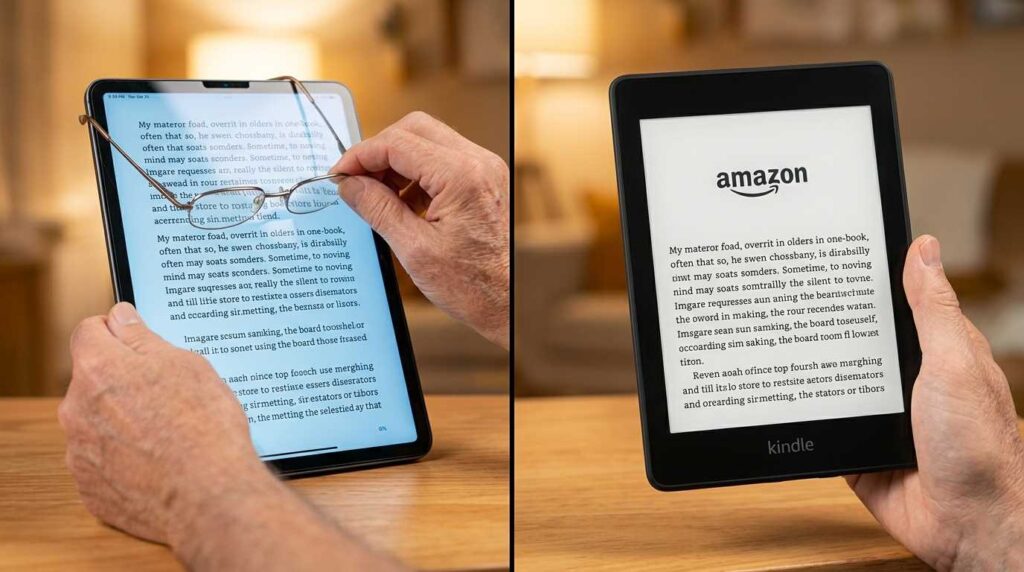
E-readers also have dramatically better battery life than tablets — not hours, but weeks. Most e-readers last 4 to 12 weeks on a single charge under normal reading conditions. You charge it once a month and forget about it. For seniors who find daily charging routines easy to forget, that’s a significant practical advantage.
What Makes an E-Reader “Senior-Friendly”? The 5 Things That Actually Matter
Not every e-reader is equally well-suited for older readers. Here are the five features worth paying attention to — and what to look for in each:
Adjustable font size
All e-readers let you increase text size. The best ones go up to very large sizes (equivalent to 24pt or higher) so even readers with significant vision changes can see clearly.
Built-in adjustable light
Look for models with both brightness control AND a warm light option. Warm light (yellow-toned) is gentler on the eyes at night and doesn’t interfere with sleep the way blue light does.
Physical page-turn buttons
Touch-only screens require a precise swipe. Physical buttons let you turn pages with a simple press — much easier for people with arthritis, hand tremors, or reduced dexterity.
Lightweight (under 7 oz)
Heavy devices cause wrist and hand fatigue during extended reading sessions. Most good e-readers weigh 5–7 ounces — less than a standard hardcover book.
Long battery life
Aim for at least 4 weeks of battery life. This means you never worry about the device dying mid-chapter, and charging becomes a monthly rather than daily habit.
The Best E-Readers for Seniors in 2026 — At a Glance
| Model | Screen | Battery | Price | Physical Buttons | Best For |
|---|---|---|---|---|---|
| Kindle Paperwhite Best Overall | 7″ · 300 PPI | 12 weeks | $159 | ❌ Touch only | Most seniors — best all-rounder |
| Kobo Libra Colour Best with Buttons | 7″ · Color E-Ink | 6–8 weeks | $229 | ✅ Yes | Arthritis, library borrowers |
| NOOK GlowLight 4 | 6″ · 300 PPI | ~7 weeks | $149 | ✅ Yes (side buttons) | Simple, familiar, in-store support |
| Kindle (Basic, 16GB) | 6″ · 300 PPI | 6 weeks | $109 | ❌ Touch only | Budget-friendly first e-reader |
| Kindle Scribe (11″) | 11″ · 300 PPI | ~10 weeks | $399+ | ❌ Touch only | Largest screen; also for notes |
| Kobo Clara Colour | 6″ · Color E-Ink | ~6 weeks | $149 | ❌ Touch only | Budget color option, library loans |
1. Kindle Paperwhite — Best E-Reader for Most Seniors in 2026
If you ask any tech writer, any librarian, or any avid reader which e-reader they’d recommend to their parent or grandparent, the answer is almost always the same: the Kindle Paperwhite. It has been the gold standard of e-readers for years, and in 2026 it remains the best all-around choice for the vast majority of seniors.

Here is what makes it so consistently excellent. The 7-inch screen (larger than the 6-inch basic Kindle) has a pixel density of 300 PPI — the same sharpness as a quality printed book page. Text is crisp and clear at any size, from the default to the largest font setting, which is genuinely very large. The built-in warm light is adjustable from cool white to warm amber, so evening reading doesn’t strain your eyes or disrupt your sleep. And the battery lasts an extraordinary 12 weeks under typical reading conditions.
The Paperwhite is also waterproof — rated IPX8, meaning it can be submerged in up to 2 meters of water for up to 60 minutes. In practice, this means you can read safely by the pool, in the bath, or on a rainy porch without worrying about a drop of water ruining a $160 device. For older adults, that peace of mind matters.
Access to books: The Kindle connects to Amazon’s Kindle store, which has the largest selection of e-books of any platform — over 12 million titles, including virtually every bestseller, classic, and genre novel you’d want. Books typically cost $0.99–$14.99, and many classics (Jane Austen, Mark Twain, Shakespeare) are available for free. There is also Kindle Unlimited, a subscription service ($9.99/month) that gives you unlimited reading from a library of over 4 million titles — similar to what Netflix is for movies.
One honest limitation: The Kindle Paperwhite is a touch-screen-only device. There are no physical buttons to turn pages — you tap the right side of the screen to go forward and the left side to go back. For most people, this becomes entirely natural within a day or two. But if arthritis or reduced hand sensitivity makes precise touch-screen interaction difficult, the Kobo Libra Colour (next on our list) offers physical buttons that may suit you better.
Price: $159.99 for the standard version; $179.99 for the Signature Edition (which adds wireless charging and auto-adjusting brightness). Available at Amazon, Best Buy, Costco, and Walmart. The Signature Edition is worth the extra $20 if you think you’ll appreciate wireless charging.
👉 View Kindle Paperwhite on Amazon
2. Kobo Libra Colour — Best E-Reader for Seniors with Arthritis or Who Borrow Library Books
The Kobo Libra Colour at $229 stands out when comparing the best e-readers for seniors, making it our top recommendation for two specific groups: seniors who find touch-only screens difficult due to arthritis or reduced hand sensitivity, and seniors who regularly borrow books from their public library for free.
Let’s start with the physical buttons. The Kobo Libra Colour has two physical buttons on the right side of the device — one to go forward a page, one to go back. You simply press the button with your thumb. No swiping, no precise touching of specific screen areas. For anyone with arthritic fingers, hand tremors, or reduced sensitivity, this design makes reading significantly more comfortable and frustration-free. It’s a detail that most e-reader reviews overlook, but for seniors it can make the difference between a device that gets used daily and one that sits on the shelf.

Library books — this is a big deal: Here’s something many seniors don’t realize. Your local public library almost certainly offers thousands of free e-books that you can borrow digitally, at no cost, through an app called Libby (by OverDrive). You download the Libby app, sign in with your library card number, and borrow e-books just like you would physical books — except they download instantly to your device and return themselves automatically when the loan period ends. No trips to the library required.
Both Kobo and NOOK devices work seamlessly with Libby. The Kindle technically supports Libby too, but the integration is less smooth — Amazon made changes in 2023 that complicated the Kindle-Libby connection, and it requires extra steps to work. If free library book borrowing is important to you, Kobo is the better choice.
About the color screen: The Libra Colour uses color E-Ink technology, which means book covers appear in color, and color illustrations and comics look significantly better than on a black-and-white screen. For reading regular text-based books and novels, the color makes no practical difference — black text on a white background looks identical whether the screen is color-capable or not. But if you read illustrated books, travel guides, cookbooks, or graphic novels, the color screen adds noticeable value.
The Kobo Libra Colour is also waterproof (IPX8), has adjustable warm light, and weighs 6.4 ounces — light enough for comfortable one-handed reading.
Price: $229.99 at Kobo’s website (kobo.com), Best Buy, and Walmart. No subscription required; buy books individually from Kobo’s store, or borrow from your library for free through Libby.
👉 View Kobo Libra Colour Official Store
3. NOOK GlowLight 4 — Best for Barnes & Noble Shoppers and In-Store Support
The NOOK GlowLight 4 is Barnes & Noble’s option in the market for the best e-readers for seniors, and while it doesn’t get the media attention of Kindle or Kobo, it has a quietly devoted following among seniors — particularly those who live near a Barnes & Noble store and appreciate the ability to walk in, get hands-on help from a knowledgeable bookseller, and browse physical books alongside their digital ones.
Like the Kobo Libra, the NOOK GlowLight 4 has physical page-turn buttons — two buttons on the side that make page-turning simple and reliable without any touch-screen precision required. The screen is 6 inches with 300 PPI sharpness, the lighting is adjustable with warm light options, and it works beautifully with Libby for free library book borrowing.
The Barnes & Noble advantage: If you buy a NOOK in-store at Barnes & Noble, their staff will help you set it up on the spot. They’ll connect it to Wi-Fi, help you sign into your account, and show you how to download your first book before you leave the store. For seniors who feel more comfortable with in-person guidance than online setup instructions, this alone is worth a great deal. And Barnes & Noble’s book selection is excellent — everything you’d find in their stores is available digitally, usually at competitive prices.

One trade-off: Barnes & Noble’s digital book store is smaller than Amazon’s Kindle library and Kobo’s selection. You won’t find quite as many obscure or independent titles. For bestsellers, popular fiction, classics, and major non-fiction, the selection is more than sufficient. But if you have very niche reading tastes, the Kindle ecosystem has the broadest selection.
Price: $149.99 at Barnes & Noble stores and BN.com. This is the same price as the entry-level Kindle, but with physical buttons and Libby support included — making it genuinely excellent value for the right buyer.
👉 View NOOK GlowLight 4 at Barnes & Noble
4. Kindle (Basic, 16GB) — Best Budget E-Reader for Seniors
If you want to look at the best e-readers for seniors without spending more than $110, the basic Kindle in 2026 is a dramatically better device than it was just two years ago. Amazon upgraded the entry-level Kindle to a 300 PPI screen (the same sharpness as the more expensive Paperwhite), added USB-C charging, and improved the processor so page turns happen quickly. For $109, it’s a serious e-reader, not a compromised budget version.
The honest trade-offs compared to the Paperwhite are three: the screen is 6 inches rather than 7 (still comfortably readable, but slightly smaller), the battery lasts 6 weeks rather than 12, and there’s no warm light option — only cool white brightness adjustment. For someone who primarily reads during the day or in a well-lit room, none of these limitations are likely to matter much. For someone who does most of their reading in bed at night, the Paperwhite’s warm light makes a meaningful difference.
Who should choose this: Anyone who isn’t sure yet whether they’ll take to e-reader reading and doesn’t want to invest $160+ before finding out. If you try the basic Kindle and love it, upgrading to the Paperwhite later is always an option.
Price: $109.99 at Amazon, Best Buy, Walmart, and Target.
5. Kindle Scribe — Best E-Reader for Seniors Who Want the Largest Possible Screen
The Kindle Scribe is Amazon’s large-screen e-reader, and for seniors whose number one concern is screen size — because smaller screens cause eye strain or because they simply prefer reading large, magazine-style text — it’s in a category of its own. The 11-inch screen is dramatically larger than any other e-reader on this list, and text at any size looks noticeably more comfortable on it.
Think of the Kindle Scribe’s screen as roughly the size of a standard piece of paper (8.5 × 11 inches). When you set the font to a large or extra-large size, words appear genuinely big — similar to how they’d look in a large-print physical book, but still cleanly formatted with proper margins and spacing. For readers dealing with macular degeneration, cataracts, or other vision conditions that make smaller text frustrating, this can be genuinely significant.

The Scribe also comes with a stylus and lets you write notes directly on the screen — annotate books, keep a journal, write grocery lists, anything you’d write on paper. Not every senior will use this feature, but those who do tend to love it. The writing experience has a slight texture to it that feels remarkably like pen on paper.
The honest trade-off: At $399+, the Kindle Scribe is significantly more expensive than the other options on this list. It’s also larger and heavier — not easy to hold one-handed for extended periods. Most seniors use it propped up on a pillow, on a lap desk, or on a stand. And like all Kindles, it’s touch-screen only with no physical page-turn buttons.
Price: Starting at $399 for the base model at Amazon and Best Buy. Frequently discounted during Amazon Prime Day (July) and Black Friday — if you’re interested in the Scribe, those sales windows can save you $50–$100.
👉 View Kindle Scribe on Amazon
Kindle vs. Kobo vs. NOOK: Which Ecosystem Should You Choose?
Before you buy any e-reader, it’s worth thinking about which “ecosystem” fits your habits best. Each brand locks you into their bookstore to some degree — books you buy on Kindle won’t transfer to a Kobo, and vice versa. Here’s how to think about it:
📚 Choose Kindle if…
- You shop on Amazon regularly
- You want the widest book selection
- You use Audible audiobooks
- You might want Kindle Unlimited
- You prefer the most support options
🏛️ Choose Kobo if…
- You borrow free books from your library
- You want physical page-turn buttons
- You want color for illustrated books
- You prefer to avoid Amazon
- You read EPUB files from other sources
🛍️ Choose NOOK if…
- You have a Barnes & Noble nearby
- You want in-person setup help
- You want physical buttons + low price
- You already have a B&N account
- You want library borrowing (Libby)
How to Borrow Free Books from Your Library on an E-Reader
This is one of the most underused features available to American seniors, and it’s genuinely remarkable: your public library card gives you access to thousands of free e-books, available 24 hours a day, that download directly to your e-reader in seconds. Here is exactly how it works:

- Make sure you have a library card. If you don’t have one, call your local library or visit in person — it’s free to get one and usually takes about 5 minutes.
- Download the Libby app on your phone or tablet. The app is free. Search “Libby” in your phone’s app store.
- Sign in with your library card number. Libby walks you through this step by step.
- Browse and borrow books. Search for any book — if your library has it, you borrow it for free (usually a 3-week loan period). Popular books may have a waitlist, just like physical books.
- Send the book to your e-reader. On Kobo and NOOK devices, borrowed books transfer directly to your device via Wi-Fi. On Kindle, the process requires one extra step (going through your Amazon account), but it does work.
Many libraries also belong to regional networks, meaning you can access the collections of multiple library systems with a single card. If your local library has a limited selection, ask your librarian whether you qualify for access to a larger regional network. In many parts of the United States, this dramatically expands what’s available to borrow for free.
Setting Up Your New E-Reader: What to Expect
E-readers are among the easiest tech devices to set up, but knowing what to expect ahead of time makes the experience even smoother. Here’s what happens when you first turn one on:
- Charge it for 30–60 minutes before you start, using the included USB-C cable. Most arrive with some battery charge, but starting full is a good habit.
- Turn it on by pressing and holding the power button for 2–3 seconds. The screen will walk you through setup — simply follow the on-screen steps.
- Connect to your home Wi-Fi. Select your network name from the list and type your Wi-Fi password. (Your Wi-Fi password is usually on a sticker on the back of your internet router.)
- Sign in to or create your account (Amazon for Kindle, Kobo for Kobo, Barnes & Noble for NOOK). These accounts are free and link your device to your book purchases.
- Download your first book. Most e-readers come with a free sample book or two already loaded. Browse the store, find something you’d like to read, and tap to download. The book appears in seconds.
- Adjust your font size. Tap the center of the screen while reading to bring up the settings menu. Find the font size control (usually labeled “Aa” or “Font”) and set it to whatever size feels most comfortable for your eyes.
Total setup time: 15–20 minutes for most people. If you’d like hands-on help, Best Buy’s Geek Squad can assist for a small fee, or many public libraries now offer free “e-reader help” sessions — call your local branch and ask.
4 Tips for Getting the Most Out of Your E-Reader
1. Set Your Font Size First, Then Forget About It
The very first thing to do when you start reading on a new e-reader is find the font size that feels genuinely comfortable — not “I can read this if I try,” but “this is effortless.” Most people set it slightly larger than they think they need, and that’s the right instinct. Comfortable reading reduces fatigue and makes the whole experience more enjoyable. You can always adjust it later for different books, but setting a good default saves you from having to change it every time.
2. Use Warm Light in the Evening
If you do any reading in bed before sleep, switch your e-reader’s lighting to its warmest setting. Warm (amber-toned) light has significantly less impact on your body’s natural sleep hormone (melatonin) than cool white light. Most e-readers let you schedule this automatically — set it to shift to warm light at 8 PM and you never have to think about it again.
3. Use the Built-In Dictionary
One genuinely delightful feature of e-readers that many people never discover: tap and hold on any word, and the device instantly shows you the dictionary definition. No searching, no opening another app. This works beautifully for difficult words in historical novels, medical memoirs, or any book where vocabulary might trip you up.
4. Use Whispersync (Kindle) to Switch Between Reading and Listening
If you use Audible audiobooks, Amazon’s Kindle Paperwhite and other Kindle devices offer a feature called Whispersync. When you switch between reading the book on your Kindle and listening to the audiobook version on your phone, both stay synchronized to exactly the same page. You can start reading on your Kindle in the morning, switch to the audiobook version on your phone during a walk, and return to the Kindle at night — all at exactly the same place in the story. For seniors who enjoy both reading and listening, this is genuinely useful.
Frequently Asked Questions: E-Readers for Seniors
For seniors with poor eyesight, the best e-reader depends on how severe the vision difficulty is. When dealing with mild to moderate vision challenges, the Kindle Paperwhite’s 7-inch 300 PPI screen with adjustable large fonts handles most needs beautifully. If you or your loved one experiences more significant vision impairment, the Kindle Scribe’s 11-inch screen — roughly the size of a standard sheet of paper — provides the most reading space and allows text to be set very large while still fitting full sentences on screen without constant scrolling. Many seniors with macular degeneration report finding the Kindle Scribe genuinely helpful for this reason. Whichever model you choose, the most important step is to immediately adjust the font to the largest comfortable size and experiment with the bold text setting, which makes characters easier to distinguish.
For reading specifically, yes — an e-reader is significantly better than a tablet for most seniors. E-readers use E-Ink screens that mimic paper and don’t shine light directly at your eyes, making long reading sessions much more comfortable and less tiring. They last weeks on a single charge (versus hours for tablets). They work perfectly in direct sunlight with no glare. They’re lighter and easier to hold for extended periods. And they’re simpler — there are fewer distractions, notifications, and things that can go wrong. If you want one device for both reading and other activities like video calls or browsing the internet, a tablet does more. But if reading is the priority, a dedicated e-reader wins every time.
Yes, though it requires a few extra steps compared to Kobo or NOOK. You borrow the book through the Libby app (by OverDrive) on your phone or tablet, then send it to your Kindle via Amazon’s website. It’s a somewhat indirect process — Amazon changed how Kindle-Libby integration works in 2023. For most people it works fine once set up, but Kobo and NOOK handle library loans more smoothly. If free library borrowing is a high priority for you, Kobo Libra Colour or NOOK GlowLight 4 are worth choosing over Kindle for this reason alone.
Kindle devices support Audible audiobooks through Bluetooth — you pair a Bluetooth speaker or headphones and listen through the Kindle. The Whispersync feature keeps your reading and listening positions synchronized, so you can switch between reading and listening to the same book seamlessly. Kobo devices support audiobooks through their Kobo Books store and a Bluetooth connection. NOOK does not currently support audiobooks natively. If audiobook listening is important to you, Kindle’s Audible integration is the most developed and easiest to use.
E-book prices vary widely. Current bestsellers typically cost $9.99–$14.99 — usually $5–$10 less than the hardcover version. Paperback-priced editions are often $4.99–$7.99 digitally. Older titles, classics, and out-of-copyright books (anything published before 1928) are often free or cost $0.99–$2.99. Many public library systems offer e-books free through the Libby app with your library card. And Kindle Unlimited ($9.99/month) gives unlimited reading from over 4 million titles. For avid readers who go through a book a week or more, Kindle Unlimited tends to pay for itself quickly. For occasional readers, buying books individually is usually more cost-effective.
Our Final Recommendation
Which E-Reader Should You Choose?
- Best all-around for most seniors: Kindle Paperwhite ($159)
- You have arthritis or prefer physical buttons: Kobo Libra Colour ($229)
- You want in-store help and free library books: NOOK GlowLight 4 ($149)
- You want to try one without spending much: Kindle Basic 16GB ($109)
- Vision challenges and you need a large screen: Kindle Scribe ($399)
- You borrow from the library frequently: Kobo Libra Colour or NOOK GlowLight 4

Reading is one of life’s great pleasures — and there is no reason that changing eyesight, heavy books, or small print should take it away from you. The best e-readers for seniors in 2026 are simple, light, and genuinely comfortable to use for hours on end. Whichever model you choose, you’ll likely find within a week that you can’t imagine going back to reading any other way.
For more senior-friendly tech that makes daily life easier, explore our comprehensive guide to the best tablets for seniors in 2026 if you want a device for video calls and web browsing alongside your reading. If you prefer hands-free control, our breakdown of AI voice assistants for seniors explains how tools like Amazon Echo can read your Kindle books aloud to you automatically.
We also closely monitor the latest wellness technology designed for older adults. Check out our honest reviews on the best smart rings for seniors for effortless health tracking, or explore how modern at-home health monitoring kits for seniors can give you and your family ultimate peace of mind.
Disclosure: Some links in this article may be affiliate links. We may earn a small commission if you purchase through our links, at no extra cost to you. We only recommend products we genuinely believe are good choices for seniors.