
Finding the best tablets for seniors in 2026 doesn’t have to be complicated — but with dozens of options on Amazon alone, it’s easy to feel lost. You don’t need the most expensive device or the trendiest brand. What you do need is a tablet that is easy to see, easy to tap, easy to charge, and actually fun to use every day. This guide was written specifically for Americans over 55 who are new to tablets or upgrading from an older one.
We’ll walk you through the top 5 best-selling tablets among U.S. seniors right now, explain what every feature actually means in plain English, and help you figure out which one fits your life — not just some tech reviewer’s wishlist.
If you’ve never owned a tablet before and want a head start before buying, take a look at our beginner-friendly overview: How Seniors Are Using AI Tools Like ChatGPT — it shows you what these devices can actually do for you day-to-day.
⚡ Quick Answer: Top Picks at a Glance
- Best Overall: Apple iPad 10th Generation — easiest to learn, best long-term support
- Best Android: Samsung Galaxy Tab A9+ — bigger screen, expandable storage
- Best Budget: Amazon Fire HD 10 — under $160, perfect for beginners
- Best Compact: Apple iPad Mini 6th Gen — lightweight, great for travel
- Best for Eye Comfort: Lenovo Tab M10 Plus (3rd Gen) — certified low blue light
Why a Tablet May Be the Best Tech Purchase You Make This Year
A tablet sits between your smartphone and a full computer — and for most people over 55, it hits the sweet spot. Here’s why:
Bigger screen, less squinting. Even the smallest tablet on our list has a screen twice as large as a typical smartphone. If you’ve struggled to read small text on your phone, a 10-inch tablet will feel like a revelation.
No complicated keyboard required. You tap what you want with your finger. That’s it. Voice assistants (like Siri or Alexa) mean you can often just speak what you’re looking for instead of typing at all.
Battery that lasts all day. Every tablet on this list lasts at least 10 hours on a single charge. You can read in the morning, video call the grandkids in the afternoon, and watch a movie at night — without hunting for an outlet.
Gateway to new opportunities. Many seniors are now using tablets not just for entertainment, but to stay mentally active, connect with community, and even earn extra income from home. Our guide to remote work for retirees shows how a simple tablet can open real doors.
How We Chose These 5 Tablets
We didn’t just look at spec sheets. We analyzed:
- Best-seller data from Amazon, Walmart, and Best Buy over the past five months
- Verified reviews specifically from buyers aged 55 and over
- Accessibility features tested by non-tech-savvy users
- Long-term software support (will this tablet still get updates in 3 years?)
- Real-world battery performance — not just the manufacturer’s claims
- Price-to-value for fixed-income and retirement budgets
One thing we noticed that most other guides miss: scam protection matters. Seniors are disproportionately targeted by online scams. We factored in which tablets have the strongest built-in security and which ecosystems make it easiest to set safe browsing boundaries. More on that in our Cyber Safety for Seniors Guide.
Side-by-Side Comparison: Best Tablets for Seniors 2026
| Tablet | Screen | Battery | Price (approx.) | Best For |
|---|---|---|---|---|
| Apple iPad 10th Gen | 10.9″ | ~10 hrs | ~$349–$399 | Overall ease of use |
| Samsung Galaxy Tab A9+ | 11″ | ~12 hrs | ~$249–$299 | Android + storage flexibility |
| Amazon Fire HD 10 | 10.1″ | ~13 hrs | ~$139–$159 | Budget + voice control |
| Apple iPad Mini 6th Gen | 8.3″ | ~10 hrs | ~$499 | Travel + one-handed use |
| Lenovo Tab M10 Plus 3rd Gen | 10.6″ | ~12 hrs | ~$179–$219 | Eye comfort + value |
1. Apple iPad (10th Generation) — Best Overall for Seniors
Who it’s for: Anyone who wants the simplest, most reliable tablet — and doesn’t mind spending a little more for peace of mind.
Why Seniors Keep Choosing the iPad
Walk into any senior center, retirement community, or 55+ tech class in the U.S. right now, and you’ll see more iPads than anything else. That’s not a coincidence. Apple has spent years making iPads that are genuinely easy for people who didn’t grow up with computers.
The interface is consistent and predictable — apps are always where you left them, buttons look like buttons, and the text is crisp enough that most people over 60 don’t even need to adjust any settings to read comfortably right out of the box.
Specs in Plain English
- Screen: 10.9 inches — about the size of a standard piece of paper, held landscape. Large, bright, and anti-glare.
- Speed: The A14 Bionic chip is extremely fast. Apps open instantly, video calls are smooth, and it won’t slow down over the years.
- Storage: 64GB is plenty for most seniors. That’s room for thousands of photos, dozens of apps, and years of emails.
- Battery: Realistically 10 hours. Most people charge it overnight like a phone and never think about it.
- Charger: USB-C — the modern standard, the same cable your phone may already use.
Accessibility Features That Actually Matter
Apple’s built-in accessibility tools are the best in the industry. You can enable them with three taps in Settings:
- VoiceOver: The iPad reads everything on screen aloud — every button, every email, every article.
- Magnifier: Point the camera at anything — a medicine bottle, a restaurant menu, small print on a contract — and zoom in to read it clearly.
- AssistiveTouch: Replaces complex swipe gestures with a single large button on screen. Great if you have arthritis or reduced dexterity.
- Display Zoom: Makes every icon and text on the entire screen larger with one setting.
What Real Senior Users Say
The most consistent feedback from seniors who own an iPad: “My grandchildren don’t have to come over to fix it.” That says everything. FaceTime video calls are one-tap. iMessage is simple. The App Store guides you to trustworthy apps. And when something goes wrong, Apple Support is reachable by phone or at any Apple Store — with patient, trained staff.
One Honest Downside
The iPad is more expensive than the other options on this list. At roughly $349–$399 new (often cheaper refurbished through Apple’s own certified store), it’s an investment. But consider: many seniors have had the same iPad for 6–7 years without issues. The long-term value is hard to argue with.
If you’re planning to use your tablet to explore income opportunities from home, the iPad pairs especially well with the tools and platforms covered in our Best AI Tools for Seniors guide.
2. Samsung Galaxy Tab A9+ — Best Android Tablet for Seniors

Who it’s for: Seniors who already use an Android phone (like a Samsung or Motorola), or anyone who wants more screen size for less money than an iPad.
Why Android Makes Sense for Some Seniors
Here’s something the iPad-focused guides don’t tell you: if you already use an Android smartphone, switching to an iPad can actually be harder — not easier. Your contacts, photos, and apps all live in the Android/Google ecosystem. Moving to Apple means re-learning where everything is.
The Samsung Galaxy Tab A9+ runs Android and looks and behaves similarly to most Android phones. If your phone is a Samsung Galaxy, using this tablet will feel immediately familiar.
What Makes the A9+ Senior-Friendly
- Easy Mode: Samsung’s built-in simplified interface replaces the normal home screen with large icons, bigger text, and a simplified layout. Toggle it on in Settings in under a minute.
- 11-inch screen: Slightly larger than the standard iPad, which is meaningful if you frequently read or watch videos.
- Expandable storage: A tiny memory card (microSD, sold separately, usually under $20) can add up to 1 terabyte of extra storage. You’ll never run out of room for photos or downloaded movies.
- Dolby Atmos sound: The speakers are impressively loud and clear for a tablet — ideal for video calls or watching TV shows without a separate speaker.
Specs in Plain English
- Screen: 11 inches, 1920×1200 — crisp enough for reading, bright enough for outdoors in mild sunlight.
- Battery: 7,040 mAh — real-world 10 to 12 hours of mixed use. Excellent.
- RAM: 4GB (standard) or 8GB (recommended if you want to switch between apps smoothly).
- Storage: 64GB or 128GB built-in, expandable with a microSD card.
One Honest Downside
Android updates can sometimes be slower to arrive on Samsung tablets compared to iPads. Apple releases updates to all supported iPads on the same day. Samsung is getting better at this, but it’s worth knowing.
If you’re thinking about using your tablet for freelance work or side income, the Samsung A9+ works well with platforms like those covered in our Upwork for Seniors guide.
3. Amazon Fire HD 10 — Best Budget Tablet for Seniors
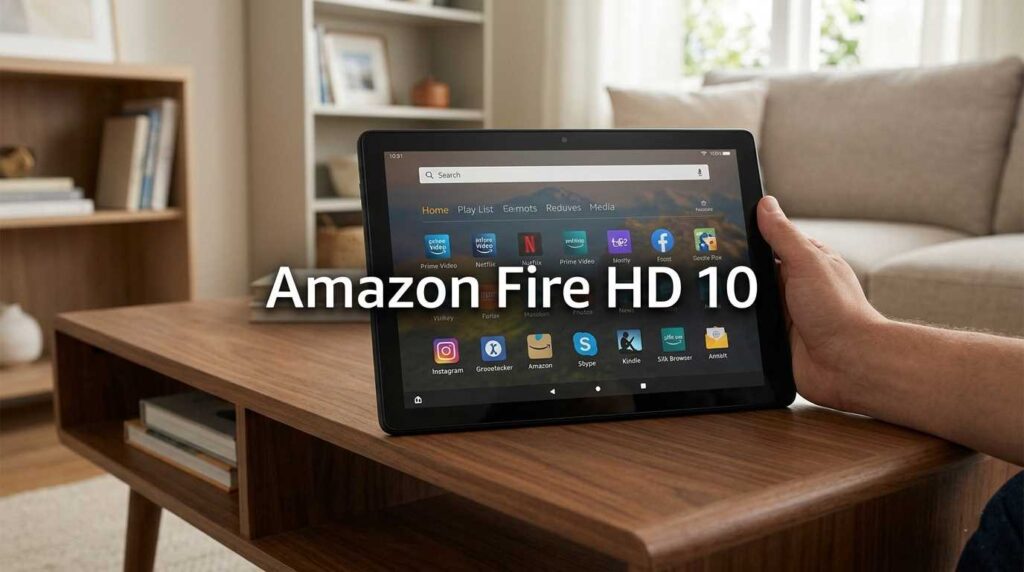
Who it’s for: First-time tablet owners, seniors on a fixed income, and anyone who mainly wants to read, watch videos, and video call family without spending a lot.
The Case for Starting Simple
Not everyone needs a $400 tablet. If you’re new to tablets and not sure you’ll use it much, spending $140–$160 on an Amazon Fire HD 10 is a completely sensible decision. It’s the best-selling tablet in the U.S. for a reason: it works, it’s easy, and when Amazon Prime membership is already in the household, it connects to everything Amazon seamlessly.
What You Actually Get
- 10.1-inch Full HD screen: Looks good. Text is clear. Video is sharp.
- 13-hour battery: The longest battery life on our list. A light user might go two full days without charging.
- Alexa built right in: Press the microphone button or just say “Alexa” to open apps, read the news, check the weather, set reminders, or make a call — all without touching the screen. This is genuinely life-changing for seniors with arthritis or vision challenges.
- Simple setup: If you have an Amazon account (you probably do), setup takes about 5 minutes. Everything syncs automatically.
The Voice Control Advantage
We want to highlight this specifically because most senior-focused guides underplay it. For someone with shaky hands, arthritis in the fingers, or early vision decline, talking to your tablet instead of tapping tiny buttons is a massive improvement in quality of life. Alexa on the Fire HD 10 is one of the most capable voice assistants available at any price point.
What You Give Up
The Fire HD 10 does not include the Google Play Store. It has its own Amazon Appstore, which has most major apps (Netflix, YouTube, Zoom, Facebook, etc.) but not every app. Some specialized health apps or newer games may not be available. If you know you need a specific app, search “Fire HD 10 + [app name]” before buying to confirm it’s available.
Also: the tablet comes with small advertisements on the lock screen by default. You can pay a one-time fee of around $15 to remove them, which we recommend.
For seniors just beginning to explore digital income from home, the Fire HD 10 pairs nicely with beginner-friendly platforms like those covered in our AI transcription guide for seniors.
4. Apple iPad Mini (6th Generation) — Best Compact Tablet for Seniors
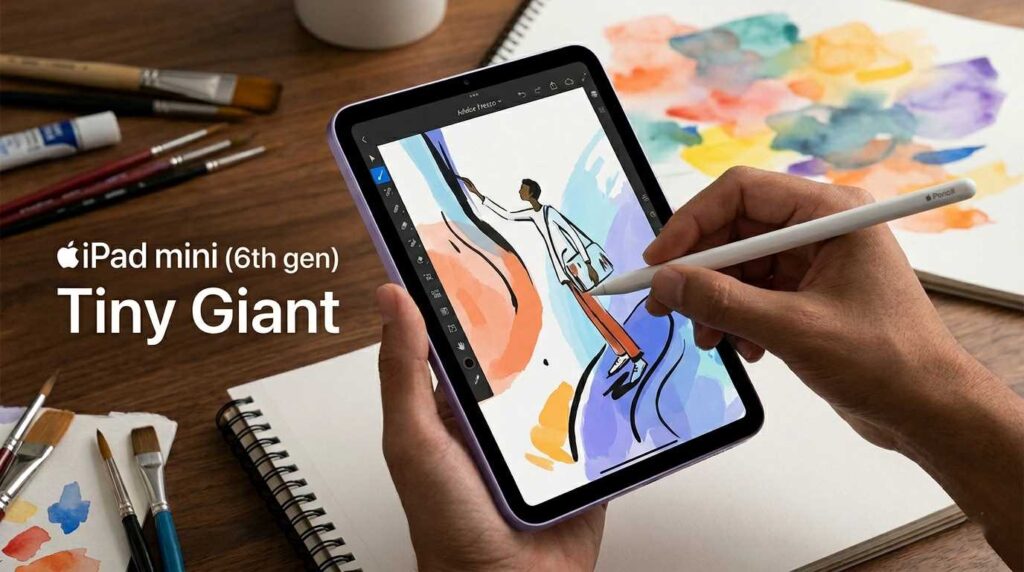
Who it’s for: Seniors who travel frequently, have hand or wrist fatigue, or simply prefer a lighter device they can hold in one hand comfortably.
Why Size Matters More Than You’d Think
Holding a 10-inch tablet for an hour of reading puts real strain on your wrists and arms. The iPad Mini weighs just 293 grams — about the same as a large apple (the fruit). That doesn’t sound like much until you’ve held a heavier tablet for 45 minutes.
Seniors with carpal tunnel, arthritis, or reduced grip strength consistently report that the iPad Mini is the only tablet they can hold comfortably for extended periods.
Don’t Let “Mini” Fool You on Performance
Despite its size, the iPad Mini 6th Gen has the A15 Bionic chip — which is actually faster than the chip in the standard iPad 10th Gen. Apps open instantly. Video calls are crystal clear. It handles everything the full-size iPad does, just on a smaller screen.
Specs in Plain English
- Screen: 8.3 inches — smaller than the others, but with a higher pixel density, so text is actually very sharp and readable.
- Weight: 293 grams. Easily held one-handed for long periods.
- Performance: Exceptionally fast — faster than most tablets at any price.
- Storage: 64GB or 256GB.
The One Real Downside
The screen is smaller. For seniors with significant vision impairment, this matters. Even with text zoom enabled, an 8.3-inch screen is simply less real estate than 10 or 11 inches. If eye strain or vision loss is a major concern, the standard iPad or Samsung A9+ is a better choice.
If you’re exploring ways to structure your day more effectively with your new tablet, our time management guide for seniors has practical ideas that work great with any tablet.
5. Lenovo Tab M10 Plus (3rd Generation) — Best for Eye Comfort and Value
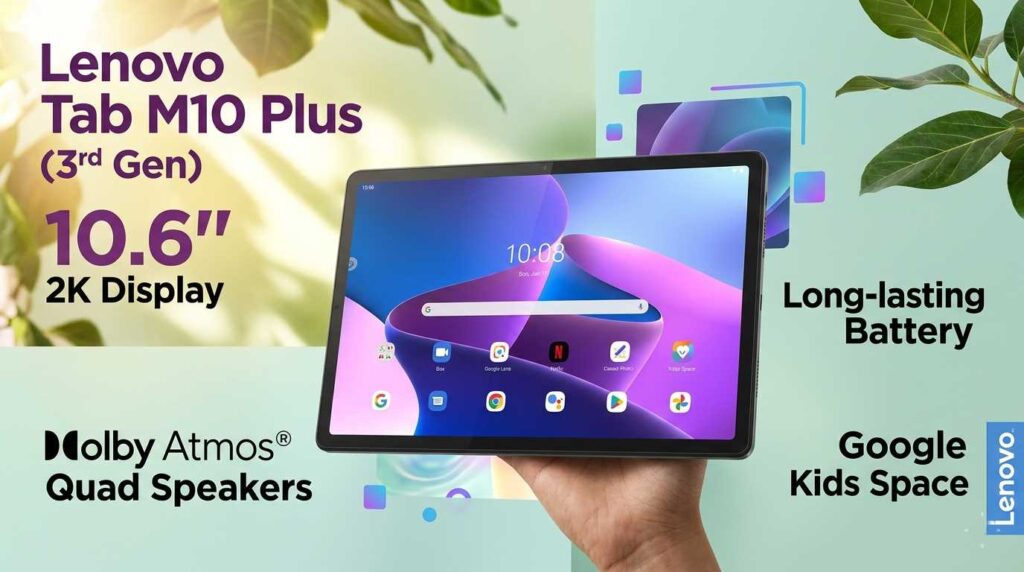
Who it’s for: Seniors who spend a lot of time reading on their tablet, or anyone who has experienced eye fatigue from screens.
The Blue Light Problem (and Why This Tablet Solves It)
Most digital screens emit blue light — a type of light that research suggests can cause eye fatigue and disrupt sleep, especially if you use your tablet in the evening. The Lenovo Tab M10 Plus is certified by TÜV Rheinland (an independent testing organization) for low blue light emission. That’s not just a marketing claim — it’s a verified, third-party certification.
The tablet also has a dedicated Reading Mode that adjusts the screen to simulate the warm tones of paper — less harsh on the eyes during long sessions.
Specs in Plain English
- Screen: 10.6 inches — larger than the standard iPad and very comfortable for extended reading.
- Battery: Around 12 hours in real-world use.
- Software: Near-stock Android — meaning very little manufacturer bloatware (extra apps you didn’t ask for). Clean and simple.
- Storage: 32GB, 64GB, or 128GB options available.
- Price: Typically $179–$219 — excellent value for what you get.
What “Near-Stock Android” Means for You
Some Android tablets come loaded with extra apps from the manufacturer that clutter up the home screen. Lenovo keeps it clean. What you see when you turn it on is essentially what Google intended Android to look like — simple, organized, and not overwhelming for a new user.
One Honest Limitation
The processor (MediaTek Helio G80) is mid-range. It handles everyday tasks — email, video calls, reading, social media, YouTube — without any problem. But if you want to use demanding apps or run several things at once, it can occasionally feel slow compared to an iPad. For most seniors’ daily use, this will never be an issue.
If you’re interested in combining your tablet habit with healthier daily routines, our anti-inflammatory diet guide for seniors is a popular read on the M10 Plus.
What Seniors Should Actually Look for When Buying a Tablet
Forget the spec wars. Here is what genuinely matters for comfortable, daily tablet use after 55:
Screen Size: Go Bigger Than You Think You Need
Most seniors who regret their tablet purchase say they should have gotten a larger screen. We recommend at least 10 inches unless you specifically need portability. The difference between a 7-inch and a 10-inch screen isn’t subtle — it’s dramatic.
Battery Life: 10 Hours Is the Minimum
Every tablet on our list meets this threshold. Anything below 8 hours will frustrate you within weeks. Look for 10+ hours of rated battery life, which typically means 8–9 hours in real-world use.
Weight: Under 500 Grams for Comfortable Reading
Tablets range from about 293 grams (iPad Mini) to over 650 grams (some large Android tablets). For reading in bed, on the couch, or during travel, lighter is almost always better.
Voice Assistant Support
Siri (Apple), Google Assistant (Android), or Alexa (Amazon Fire) — all three are solid. For seniors with dexterity challenges or vision issues, a good voice assistant isn’t a bonus feature, it’s essential. Test it in the store before buying.
Security: This Matters More Than Most Guides Admit
Online scams targeting seniors are at an all-time high. A tablet that receives regular security updates and has robust app review processes is safer than one that doesn’t. Apple iOS is regularly updated and has one of the most tightly controlled app stores. Google Play has improved significantly. Amazon’s AppStore is also well-monitored. All three on our list are safe choices when used carefully. We strongly recommend bookmarking our Cyber Safety for Seniors Guide as your first read after getting your new tablet.
Customer Support
This is underrated. Apple has physical retail stores and phone support. Samsung has phone and online support. Amazon has 24/7 chat. Lenovo’s support is more limited. If having someone to call when things go wrong matters to you, Apple or Amazon are your safest choices.
iPad vs. Android Tablet: Which Is Right for You?
This is the most common question we get. Here’s the honest answer:
| Factor | iPad (Apple) | Android (Samsung / Lenovo) |
|---|---|---|
| Ease of use for beginners | ⭐⭐⭐⭐⭐ Best in class | ⭐⭐⭐⭐ Very good (especially with Easy Mode) |
| Works with Android phone | ❌ Separate ecosystem | ✅ Seamless sync |
| Long-term software updates | ✅ 5–6 years guaranteed | ⚠️ 2–4 years (varies by brand) |
| Price range | $349–$499+ | $140–$299 |
| App availability | ✅ Excellent | ✅ Excellent (Android) / ⚠️ Limited (Fire) |
| Customization | ⚠️ More limited | ✅ Highly flexible |
| In-person retail support | ✅ Apple Store nationwide | ⚠️ Phone / online only |
Simple rule of thumb: If you have an iPhone, get an iPad — they work together beautifully. If you have an Android phone, get a Samsung or Lenovo tablet. If you’re brand new to all of it, the iPad or Amazon Fire HD 10 are the two safest starting points.
What Are Seniors Actually Using Tablets For in 2026?
This has changed a lot in the past few years. It used to be mostly reading and email. Now seniors across the U.S. are using tablets for:
Staying connected with family. Video calls via FaceTime, Zoom, or Google Meet have become a lifeline for many older adults, especially those who live alone or away from family. A tablet’s larger screen makes these calls far more personal than a phone.
Health management. Telehealth apps, medication reminders, prescription refills, and health tracking are all easier on a tablet’s larger interface. Many insurance providers now offer dedicated apps for managing Medicare benefits.
Mental stimulation and brain health. From crossword puzzles to language learning apps to our daily Sudoku for seniors, tablets are becoming a primary tool for cognitive engagement.
Entertainment. Streaming Netflix, watching YouTube videos of travel destinations, listening to audiobooks on Audible, reading on the Kindle app — tablets are a full entertainment center in your hands.
Income and freelancing. This is the fastest-growing area. A growing number of retired Americans are using tablets to freelance, consult, or earn passive income. If this interests you, our guide to passive income for seniors and our overview of freelancing after 50 are great starting points.
5 Tips for Setting Up Your New Tablet (If This Is Your First One)
Once your tablet arrives, these five steps will make the first week much smoother:
- Increase the font size immediately.
Every tablet allows you to make text larger in the Settings menu. Don’t squint at the default size — make it comfortable for your eyes before you do anything else.
- Turn on the voice assistant and practice using it.
Say “Hey Siri,” “Hey Google,” or “Alexa” and ask it something simple. Once you get comfortable with voice commands, using your tablet becomes dramatically easier.
- Enable automatic brightness.
This setting adjusts the screen to be easy on your eyes in any lighting — bright outside, dimmer in a dark room. Find it in Display settings.
- Set a simple password or use fingerprint/face recognition.
You want your tablet to be secure, but not so locked down that you’re constantly frustrated. Most tablets offer face recognition — just look at it to unlock.
- Connect it to your home Wi-Fi and let it update.
Before using your new tablet for anything important, connect to Wi-Fi and allow it to download any available updates. This takes maybe 20 minutes and ensures everything runs smoothly from day one.
For broader digital guidance, our digital tools overview for seniors covers the apps most worth learning first.
Frequently Asked Questions About Tablets for Seniors
The Apple iPad 10th Generation is consistently rated the easiest for first-time users, thanks to its consistent interface and excellent built-in accessibility features. For seniors on a budget, the Amazon Fire HD 10 is a close second — Alexa voice control makes it very approachable for beginners who find touchscreens challenging.
Yes, for most features — including apps, browsing, video calls, and streaming — you’ll need a Wi-Fi connection. However, downloaded content (books, movies, music) can be accessed offline. Some tablets also offer cellular data options (like a smartphone plan) for an additional monthly cost if you want to use your tablet away from home.
Absolutely — and more seniors are doing so every year. Common income activities include freelance writing, online tutoring, virtual assistance, transcription, and selling digital products. Our guide to best side hustles for retirees in 2026 covers the most realistic and beginner-friendly options in detail.
The Fire HD 10 is generally safe, and Amazon actively reviews apps in its Appstore. That said, no tablet is immune to online scams. We recommend reading our Cyber Safety for Seniors Guide regardless of which tablet you choose — it covers the most common threats and simple ways to avoid them.
For users with significant vision impairment, we recommend at least a 10-inch screen. The Samsung Galaxy Tab A9+ at 11 inches gives the most screen real estate of our top picks, and the Lenovo Tab M10 Plus offers certified low blue light for extended, comfortable reading. Both allow text scaling to very large sizes in accessibility settings.
Final Thoughts: The Best Tablet Is the One You’ll Actually Use
There’s no universally perfect tablet for every senior. The right choice depends on your budget, what phone you already use, how often you plan to read versus watch video versus video call, and whether weight or screen size matters more to you.
What we can say with confidence: any tablet on this list will meaningfully improve daily life when compared to struggling with a small phone screen. The ability to video call family clearly, read news comfortably, manage health appointments, and explore the internet on a proper screen is genuinely valuable — and more accessible than ever in 2026.
Start with your budget and your biggest single need (reading? video calls? voice control?), use the comparison table near the top of this guide, and don’t overthink it. The tablet you own and use is better than the perfect tablet you never buy.
When you’re ready to explore what else your new tablet can do, check out our guide to making money with AI as a senior — you might be surprised how accessible these opportunities have become.
This guide is updated regularly to reflect current pricing and availability. We do not accept payment for tablet placements or rankings. All recommendations are based on independent analysis of sales data, verified user reviews, and hands-on research.
Last reviewed and updated: April 29, 2026 by the SeniorGig Team.