

Gemini AI for retirees is not a complicated technology reserved for younger people. It is a practical, free tool that helps seniors write better, plan smarter, earn more from their expertise, and handle dozens of daily tasks in a fraction of the time they currently take. If you have used Google Search, you can use Gemini. The learning curve is not steep — it is a conversation, not a command line.
This guide covers everything from your first login to advanced strategies for turning Gemini into a genuine income tool. No jargon. No assumptions about prior tech knowledge. Just honest, practical guidance on what Gemini actually does well for seniors in 2026.
What Is Gemini AI and How Is It Different From Google Search?
This question matters because the distinction determines how you use it effectively.
Google Search finds existing pages on the internet that match your query. You type a question, Google shows you a list of websites, you click through and read.
Gemini is fundamentally different. It does not find existing content — it generates new responses specifically for you, in the moment, based on your question and the conversation context. When you ask Gemini to explain your Medicare summary, draft a LinkedIn message, or help you outline a consulting proposal, it creates something original that did not exist before you asked.
This distinction matters practically: Gemini is not a search engine replacement. It is a thinking partner, writing assistant, and personal tutor that happens to have access to an enormous amount of training knowledge. You talk to it the way you would talk to a very well-read colleague who is infinitely patient and available at 3am.
🤖 Gemini at a Glance for Seniors
| What it is | Google’s most advanced AI assistant — generates text, explains things, helps write and plan |
| Where to find it | gemini.google.com or the Google app on your phone |
| Cost | Free tier handles most daily and professional tasks. Gemini Advanced ($19.99/month) adds more powerful reasoning. |
| What you need | A Google account (free), any internet browser, any device you already own |
| How hard to learn | If you can write a text message, you can use Gemini. The interface is a text box. |
Setting Up Gemini: Your First 15 Minutes
📌 Step 1: Access Gemini (2 minutes)
Open any web browser and go to gemini.google.com. If you have a Gmail account, you’re already set up — sign in with your Google credentials. If you don’t have a Google account, click “Create account” and follow the prompts. The account is free.
📌 Step 2: Your First Conversation (5 minutes)
You’ll see a text box at the bottom of the screen. Type something natural — the way you’d ask a question to a knowledgeable friend:
“I’m a retired HR director with 28 years of experience. I’m thinking about starting a consulting practice. What should I know before I start?”
Gemini will respond with a thoughtful, detailed answer. You can then ask follow-up questions — “Tell me more about pricing” or “What industries need HR consultants most?” — and it remembers the context of your previous messages in the same conversation.
📌 Step 3: Install on Your Phone (5 minutes)
Download the Google app on your iPhone or Android phone. Tap the Gemini icon (a sparkle symbol) in the bottom bar of the Google app. This gives you Gemini access anywhere — while waiting at the doctor’s office, during morning coffee, or when a question occurs to you mid-day.
Voice input tip: Tap the microphone icon and speak your question instead of typing. Gemini works equally well with voice input — no typing required for seniors who find extended keyboard use tiring.
📺 Video Guide: Seeing Gemini in Action
Setting up a new tool is always easier when you can follow along with a demonstration. Below is a curated video guide that walks you through the Gemini interface, showing you exactly where to click and how to phrase your first few questions.
Watching this 5-minute walkthrough will help you visualize how Gemini functions as a “thinking partner” rather than just a search bar.
Gemini AI for Retirees: 10 Practical Daily Uses
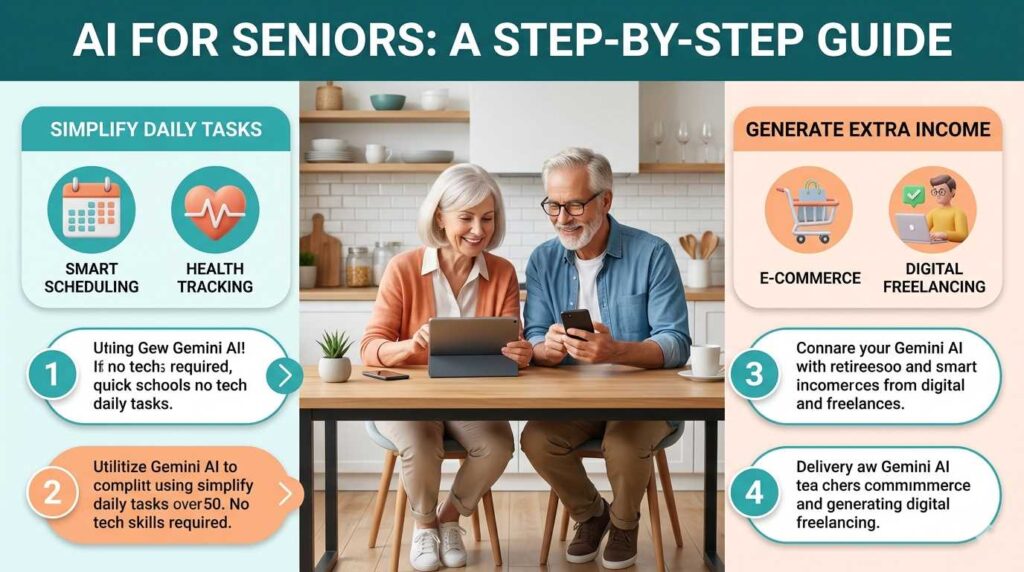
The best way to understand what Gemini actually does is through specific, realistic use cases. Here are ten ways seniors use it in daily life — not theoretical possibilities, but things real retirees do with Gemini every day in 2026:
💊 1. Understanding Medical Documents
Medical summaries, insurance explanations of benefits, Medicare notices, and prescription information are written in language designed for professionals, not patients. Gemini translates them instantly.
How to use it: Paste the text of the document (removing any identifying information like your name and ID numbers for privacy) and ask: “Explain this in plain English. What does it mean for me practically, and is there anything I need to do?”
What you get: A clear, plain-language summary with the key action items highlighted. A Medicare Part D coverage gap explanation that takes 20 minutes to decode yourself takes Gemini 10 seconds.
✍️ 2. Writing Professional Emails and Messages
Many seniors know what they want to say but find the drafting process slow or uncertain about tone. Gemini makes this effortless.
“I need to write a professional email to a potential consulting client I met at a conference last week. His name is David Chen, he’s a VP at a manufacturing company, and we discussed supply chain challenges. I want to follow up and suggest a brief call. Please draft something warm but professional.”
Gemini produces a complete draft in seconds. Edit it to match your voice, add the specific details you remember, and send.
📊 3. Preparing for Client Meetings
Before any consulting call, client meeting, or professional conversation, ask Gemini to help you prepare:
“I have a call tomorrow with a regional healthcare network about improving their staff retention. What are the most important questions I should ask to understand their situation? What are the most common mistakes HR consultants make in these initial conversations?”
For building consulting proposals with AI assistance, see our guide on using AI for consulting proposals — the same techniques apply directly to Gemini.
🗓️ 4. Planning and Organizing
Gemini excels at structuring complex projects and decisions. Give it a messy situation and ask for clarity:
“I’m trying to set up a home consulting practice. I have a website, a LinkedIn profile, two potential clients, and no formal contracts or pricing. What are the most important things to set up in the next 30 days, in priority order?”
You receive an organized, prioritized action plan built specifically around your situation.
📚 5. Research and Learning

Gemini is a patient tutor for any subject. Seniors learning new skills — bookkeeping software, digital marketing concepts, platform mechanics — use it as their first stop for explanations:
“Explain double-entry bookkeeping as if I’m a retired teacher with no accounting background. Use a simple example from running a small business.”
The AI adjusts its explanation to your stated background and can answer follow-up questions indefinitely without frustration. For AI-accelerated skill learning as a senior, see our AI Learning for Seniors guide.
🌍 6. Travel Planning
Planning a trip to Lisbon, Kyoto, or Ljubljana? Gemini builds custom itineraries, finds senior-friendly walking routes, explains visa requirements, and answers specific questions that generic travel guides don’t address:
“I’m 68, have mild knee arthritis, and want to spend 10 days in Lisbon. Build me a daily itinerary that minimizes steep hills and includes rest points, and suggest neighborhoods to stay in based on flat terrain.”
💰 7. Financial Calculations and Planning
Gemini handles retirement income calculations, Social Security timing analysis, and budget projections when you provide it with your numbers:
“If I have $420,000 in my IRA, Social Security of $1,850/month, and monthly expenses of $3,200, how long would my savings last at a 4% annual withdrawal rate? What if I add $800/month in consulting income?”
It produces the calculation with clear explanation of the assumptions. Note: Gemini provides financial calculations and general information, not licensed financial advice — use results as starting points for discussions with your financial advisor.
📝 8. Creating Content for Your Business
LinkedIn posts, newsletter content, website copy, presentation outlines, social media updates — Gemini drafts all of these from your bullet points or verbal description. A senior who currently spends three hours writing a LinkedIn article can reduce that to 45 minutes: 15 minutes describing what you want to say, Gemini drafts, 30 minutes of editing to make it sound like you.
🎓 9. Preparing for Job Interviews or Client Pitches
“Act as a skeptical hiring manager interviewing a 65-year-old candidate for a remote consulting position. Ask me 10 tough questions about why I’m re-entering the workforce and whether my skills are current. I’ll answer each one and you tell me how to improve my responses.”
This kind of interview simulation is one of Gemini’s most powerful senior-specific applications — and it’s available 24 hours a day at no cost.
🔒 10. Understanding Legal and Insurance Documents
Insurance policies, lease agreements, contractor agreements, and legal notices can be pasted into Gemini with the question: “Summarize the key terms and flag anything unusual or potentially problematic about this agreement.” Not a substitute for a lawyer’s review of important documents — but an excellent tool for understanding what you’re reading before deciding whether to get professional advice.
Gemini vs. ChatGPT vs. Claude: Which Should Seniors Use?
This question comes up constantly, and the honest answer is: they’re more similar than different for most daily uses. But the differences matter for specific tasks:
| Task | Gemini | ChatGPT | Claude |
|---|---|---|---|
| Current information / search | ⭐⭐⭐⭐⭐ Best | ⭐⭐⭐⭐ | ⭐⭐⭐⭐ |
| Long document analysis | ⭐⭐⭐⭐ | ⭐⭐⭐⭐ | ⭐⭐⭐⭐⭐ Best |
| Creative and professional writing | ⭐⭐⭐⭐ | ⭐⭐⭐⭐ | ⭐⭐⭐⭐⭐ Best |
| Google Workspace integration | ⭐⭐⭐⭐⭐ Best | ⭐⭐ | ⭐⭐ |
| Image generation | ⭐⭐⭐⭐⭐ Built-in | ⭐⭐⭐⭐ DALL-E | ⭐⭐ Limited |
| Privacy (data usage) | ⭐⭐⭐ Google collects data | ⭐⭐⭐ | ⭐⭐⭐⭐⭐ Strongest |
| Free tier generosity | ⭐⭐⭐⭐⭐ Very generous | ⭐⭐⭐⭐ | ⭐⭐⭐⭐ |
Recommendation for most seniors: Start with Gemini if you already use Gmail and Google products — the integration is seamless. For deep document analysis and nuanced professional writing, Claude is worth exploring as a complement. For a full comparison, see our ChatGPT vs Claude for Seniors guide and our Best AI Tools for Seniors guide.
Using Gemini to Generate Income: The Senior’s Strategy

This section moves beyond productivity into earning. Gemini as a daily assistant is valuable. Gemini as a professional income amplifier is transformative — particularly for seniors building consulting, freelancing, or digital product businesses.
💼 Consulting and Professional Services
If you’re building a consulting practice, Gemini reduces the administrative and writing overhead dramatically — allowing you to serve more clients with the same hours, or the same clients with less time:
- Proposal drafting: Describe your client’s situation and your proposed approach verbally to Gemini — it structures it into a professional proposal format you edit and finalize
- Research preparation: Ask Gemini to brief you on an industry, company, or challenge before a client call — arriving informed without spending hours on research
- Report writing: Give Gemini your notes and findings from a consulting engagement — it drafts the report structure and prose you refine
- Contract language: Ask Gemini to explain specific clauses in contracts you’re reviewing, or to suggest standard language for service agreements (confirm with a lawyer before signing important contracts)
For building the consulting practice that Gemini supports, see our How to Start Consulting After 50 guide.
📚 Digital Products and Content
Seniors creating ebooks, online courses, Gumroad guides, or Substack newsletters use Gemini to dramatically accelerate the production process:
- Book outline: Describe your expertise and target reader — Gemini produces a complete chapter-by-chapter outline for your book or course
- Draft chapters: Provide your bullet points for a chapter — Gemini expands them into readable prose you edit to match your voice
- Newsletter content: Describe what you want to cover this week — Gemini drafts the issue you refine
- Product descriptions: Paste your Gumroad or Teachable product outline — Gemini writes compelling sales copy
For the platforms where this content generates income, see our guides on Amazon KDP for Seniors, Gumroad for Seniors, and Substack for Seniors.
🎨 Visual Content with Gemini’s Image Generation
Gemini can generate images directly within the interface — useful for creating social media visuals, blog post illustrations, and digital product mockups without a separate design tool. Describe what you want in plain language: “Create a professional image showing a senior woman working on a laptop in a bright home office for a blog post about remote consulting.”
For more advanced visual work, Midjourney produces higher quality results — see our Midjourney for Seniors guide. For design work using templates, see our Making Money with Canva guide.
Advanced Gemini Techniques That Actually Work for Seniors
The difference between average and exceptional Gemini output is how you ask. Here are specific prompting techniques that consistently produce better results:
- 🎭 The Role Technique
Give Gemini a specific role before your request. This dramatically improves the quality and relevance of the response:
“Act as an experienced career coach who specializes in helping professionals over 60 return to the workforce. I’m a retired pharmacist wanting to start a medication management consulting practice for assisted living facilities. What are the three most important things I should focus on in my first 90 days?” - 📋 The Context Technique
The more context you give, the better the output. Don’t just ask the question — tell Gemini who you are and what you’re trying to accomplish:
“I’m a 67-year-old retired logistics VP with 35 years of supply chain experience, primarily in food distribution. I want to write a LinkedIn post about the supply chain lessons from the recent tariff changes that would be useful for small food business owners. Write it in a professional but accessible tone, approximately 250 words, and include a call to action inviting readers to comment with their experiences.” - 🔄 The Iteration Technique
Never accept Gemini’s first output as final. Ask it to revise:
“Make this more conversational”
“Shorten this to 150 words”
“Add a specific example from healthcare”
“This sounds too formal — rewrite it the way I’d actually say it in a meeting”
Iteration is where AI output transforms from generic to genuinely useful. Each revision instruction produces a better result. - 📎 The Document Analysis Technique
Gemini can analyze documents you paste into the conversation — Medicare notices, insurance policies, contracts, job descriptions. The most useful prompt structure:
“Here is [document type]. Please: 1) Summarize the key points in plain English, 2) Identify anything I need to take action on and by when, 3) Flag anything that seems unusual or that I should ask a professional about.”
Privacy and Safety: What Seniors Need to Know About Using Gemini
⚠️ Important privacy guidelines for using Gemini:
- Never paste your Social Security number, bank account numbers, or Medicare ID into any AI tool including Gemini. Remove identifying numbers from any documents before pasting them for analysis.
- Google uses Gemini conversations to improve its models unless you opt out. Go to gemini.google.com → Settings → Gemini Apps Activity to review and control your data settings.
- Gemini can be wrong. It’s a language model, not a guaranteed fact source. For medical decisions, financial decisions, and legal matters, verify important information with appropriate professionals. Treat Gemini’s output as a well-informed starting point, not a final authority.
- AI-generated content should be reviewed before sending professionally. Always read and edit anything Gemini drafts before using it in a professional context — it may contain errors or a tone that doesn’t match yours.
For comprehensive cybersecurity guidance for seniors using AI and digital tools, see our Cyber Safety for Seniors guide.
Your 30-Day Gemini Action Plan
Reading about Gemini produces zero results. Using it produces results. Here’s a specific four-week plan to go from beginner to confident daily user:
Week 1 — Daily Life Tasks (10 minutes/day)
Use Gemini for three mundane tasks that currently take more time than they should: drafting a reply to an email, summarizing a document you need to understand, or planning your week. The goal is building the habit of reaching for Gemini rather than struggling alone.
Week 2 — Professional Development (20 minutes/day)
Ask Gemini to help you with one professional task daily: researching a potential client or opportunity, drafting an outreach message, preparing for a call, or outlining content you want to create. See how your output quality changes.
Week 3 — Income Generation (30 minutes/day)
Use Gemini for a specific income-directed project: drafting a consulting proposal, outlining a digital product, writing LinkedIn content, or preparing a pitch. Identify your consulting niche with our Consulting Niche for Seniors guide and ask Gemini to help you develop it.
Week 4 — Advanced Techniques (30 minutes/day)
Experiment with the role technique, the iteration technique, and document analysis. Ask Gemini to help you refine something you created in weeks 2–3. Notice the difference between your first prompts and your fourth-week prompts — it is significant.
For the complete AI toolkit that goes beyond Gemini, see our Best AI Tools for Seniors guide. For how this fits into a broader income strategy, see our Make Money Online After 50 Master Guide.
Gemini won’t replace your expertise. Nothing can. What it will do is remove the friction between your knowledge and its expression — the drafting, the research, the organization, the writing — leaving you more time and energy for the things that only you can provide: judgment, relationships, and the accumulated wisdom of a career well-lived.
Open a browser tab right now. Go to gemini.google.com. Type one question about something you’re working on. That’s the entire beginning.
Frequently Asked Questions – Gemini Ai For Retirees
Yes — Gemini’s standard version is free and handles the vast majority of daily tasks, writing assistance, research, and income-generating work that seniors use it for. Gemini Advanced ($19.99/month) provides access to Google’s most powerful model and is worth considering if you use AI intensively for professional work, but the free tier is an excellent starting point.
Both are capable AI assistants with similar core functionality. Gemini’s main advantage for seniors already using Google products is its integration with Gmail, Google Docs, and Google Drive — allowing it to help with documents and emails you already have. ChatGPT has a larger ecosystem of plugins and specialized capabilities. For most daily and professional tasks, both work well. Many seniors use both depending on the task.
Yes — if you can write a text message or email, you can use Gemini. The interface is a text box. You type a question or request in plain English, Gemini responds, and you continue the conversation. There is no technical setup, no learning curve for the interface itself, and no requirement to understand how the AI works — only to communicate what you want.
With appropriate precautions, yes. The key rule: never paste documents containing your Social Security number, financial account numbers, Medicare ID, or other sensitive identifying numbers into any AI tool. Remove these before pasting. Google does use Gemini conversations to improve its models unless you opt out — adjust your settings at gemini.google.com if this concerns you. For all other document types, Gemini is safe and useful for understanding complex content.
Last reviewed and updated: April 27, 2026 by the SeniorGig Team.
I’m 74 and have recently got a new phone with Gemini. So far I have used it for timing my cooking. It makes me laugh with the response’s I’m looking forward to learning more about how it can help me.
Thank you.